Split modes
A split mode decides which ink prints which part of your image. Meet the eight cards of the Editor on a single artwork, and see how much ink each one asks for.
A Risograph prints one ink at a time. Before anything reaches a drum, a full-colour image has to become a short stack of single-ink plates. How the image is shared between those plates is the job of the split mode, and no other choice in the Editor changes your print as much. This lesson runs one artwork through the eight split mode cards, so you can see what each one does and how much ink it asks for.
One image in, one plate per ink out.
A split mode is the rule that decides which ink prints which part of your image: which one carries the shadows, which one the reds, where two inks overprint to make a third colour. Keep the image and the inks, change the mode, and you get a different print.
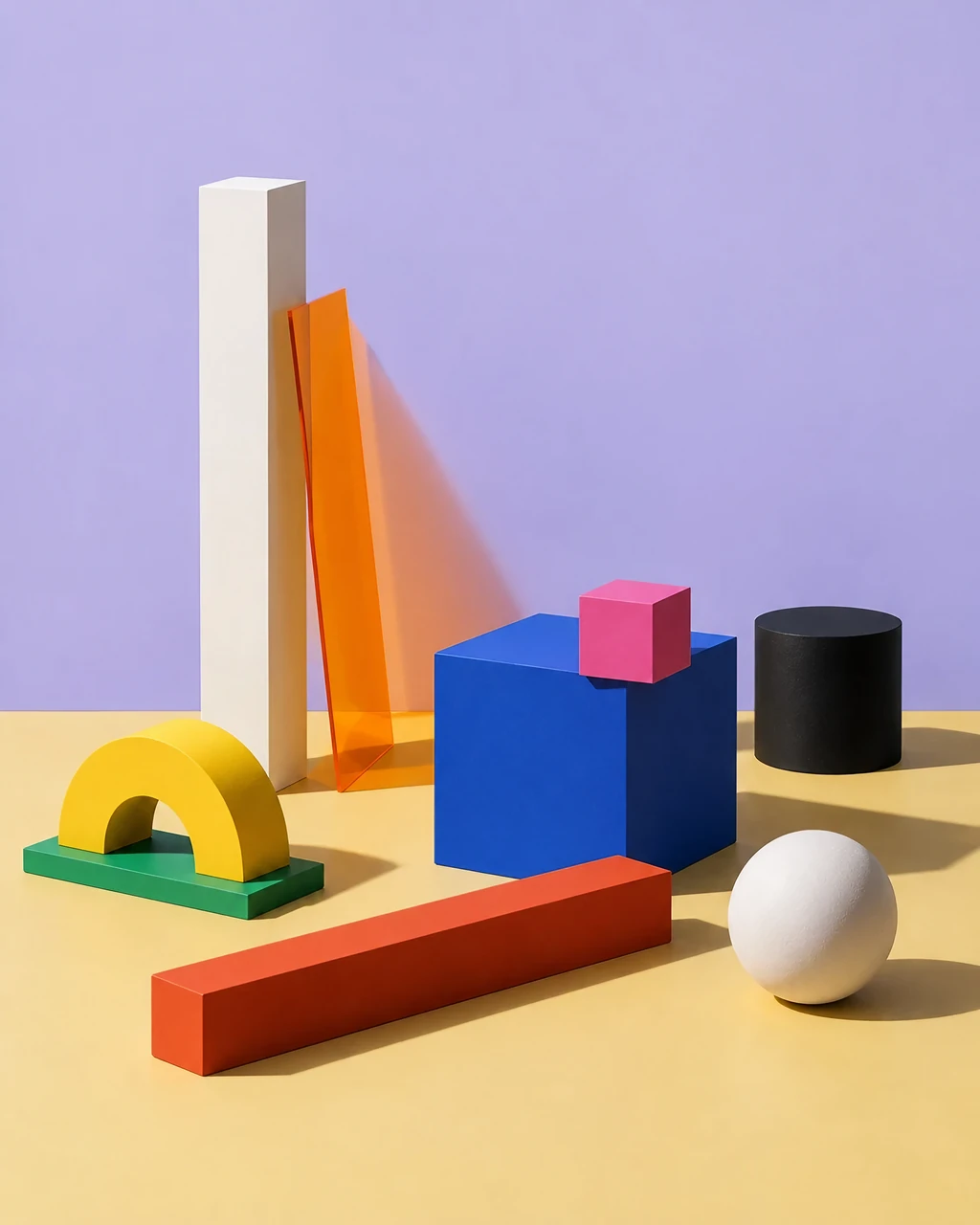
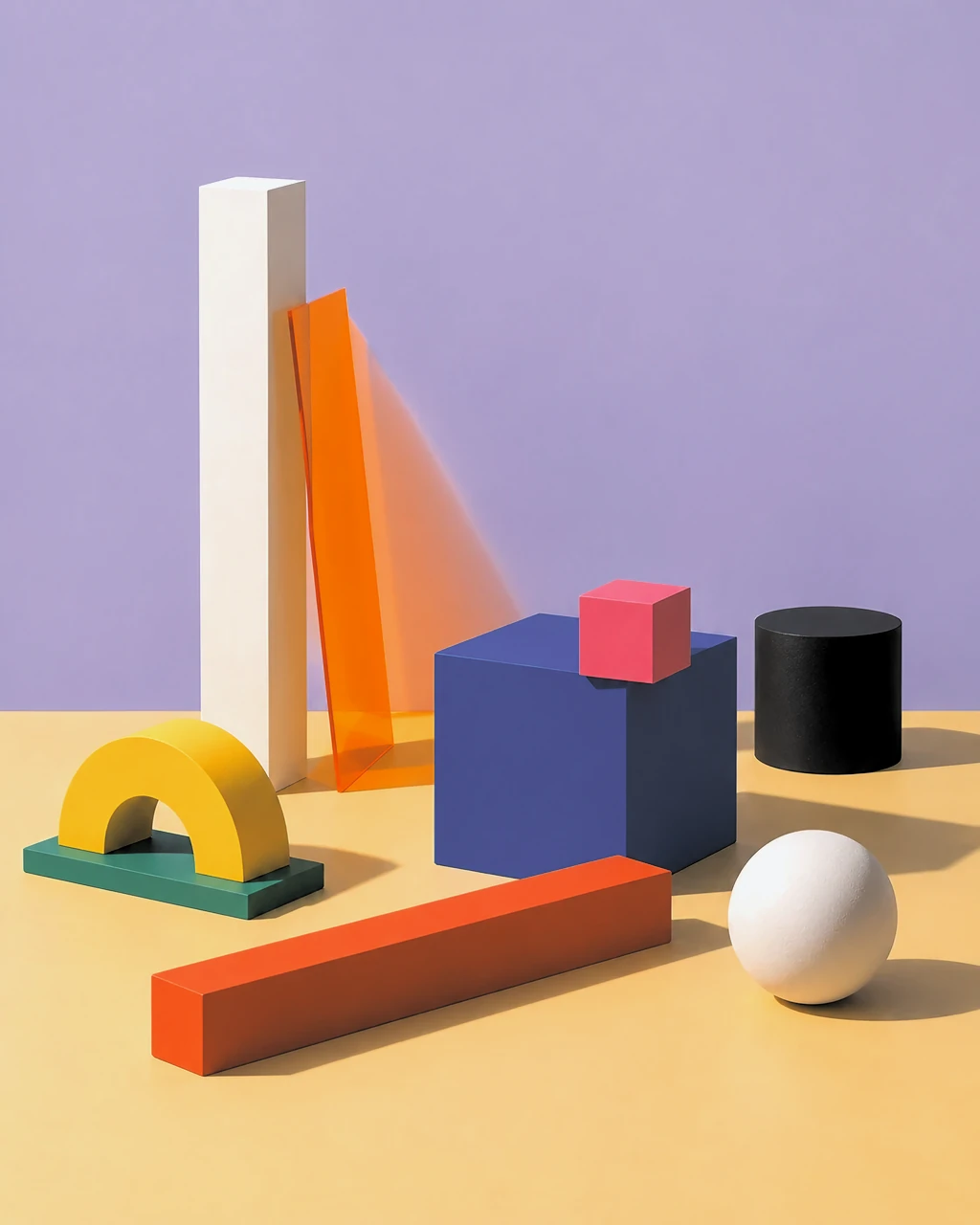
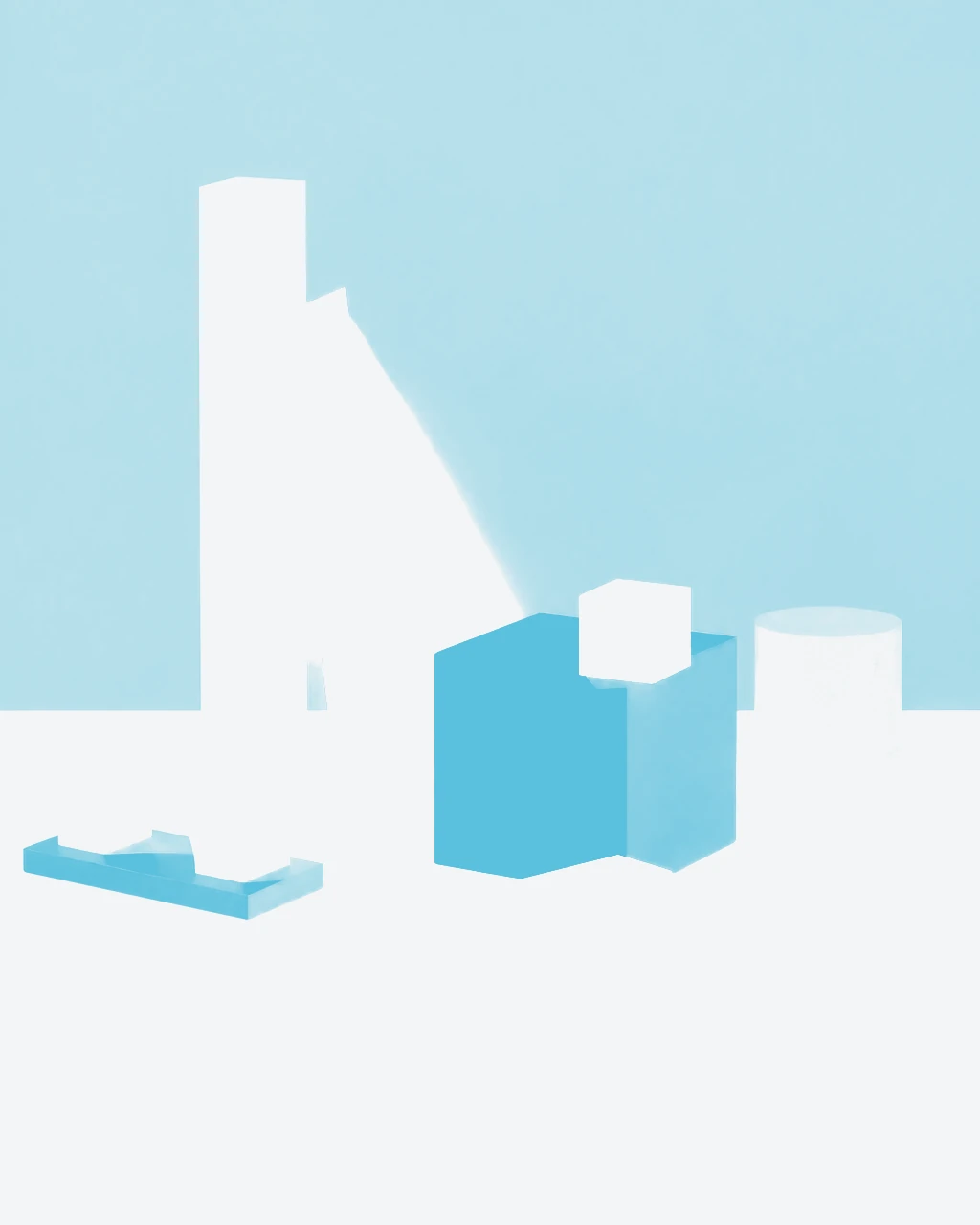
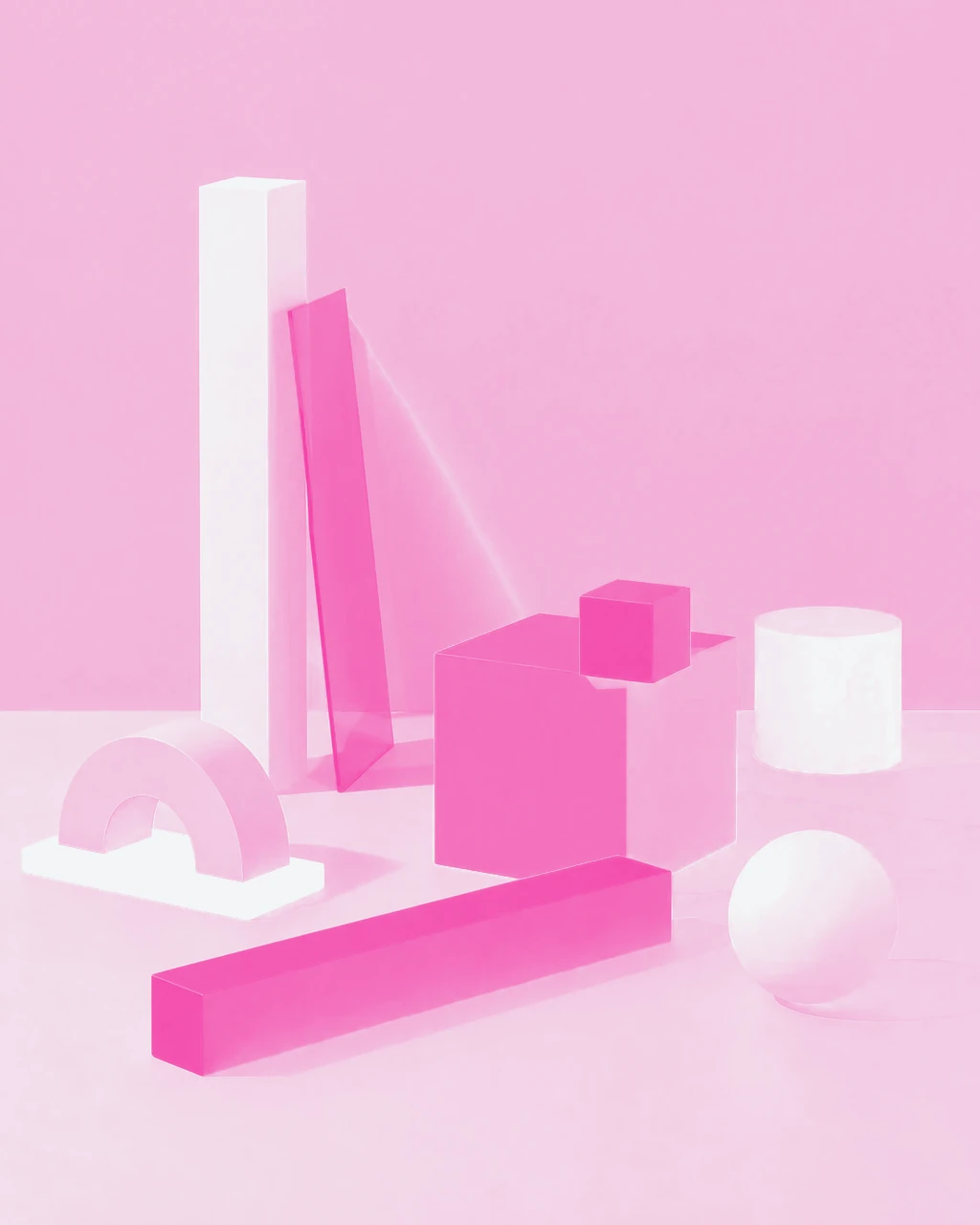
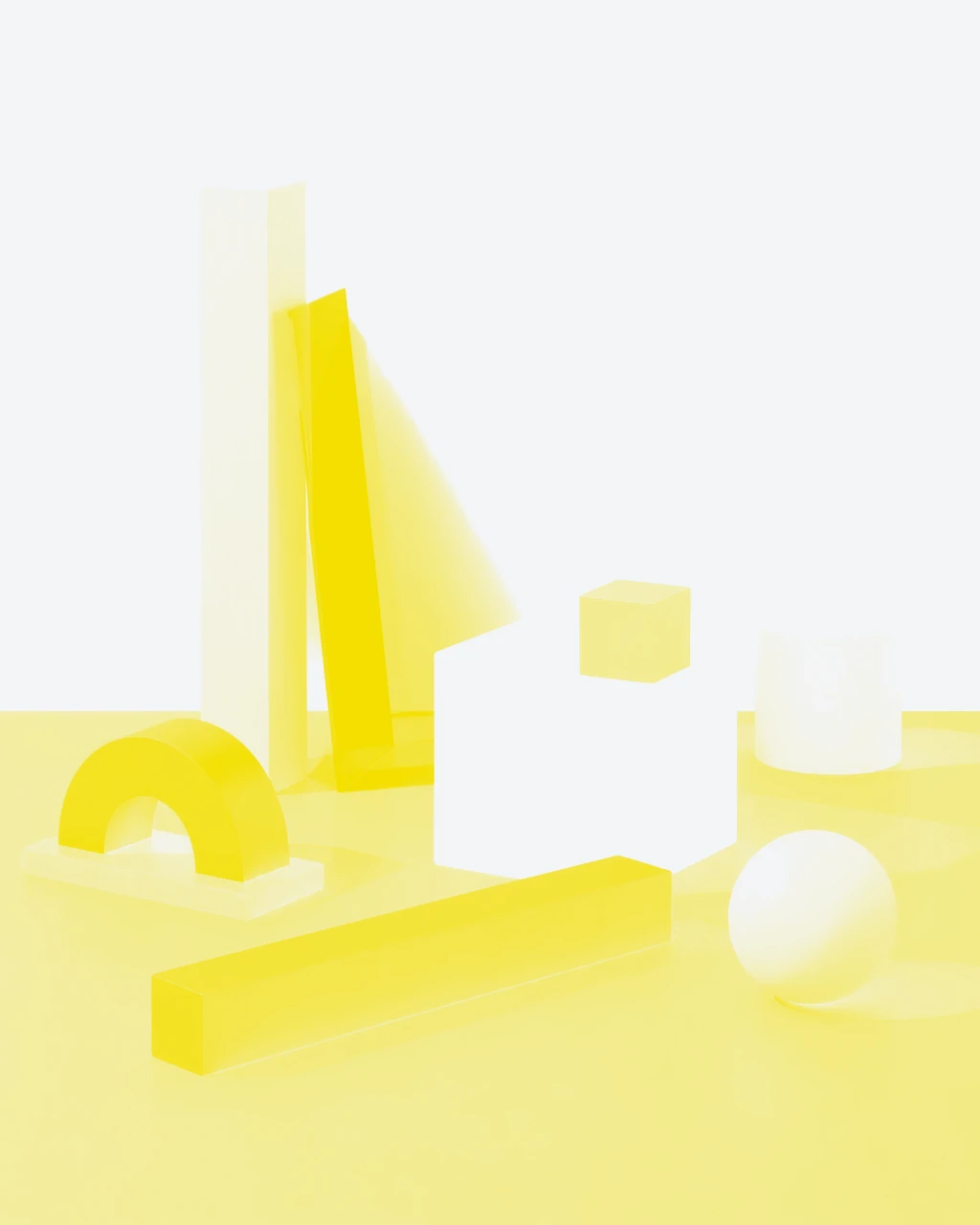
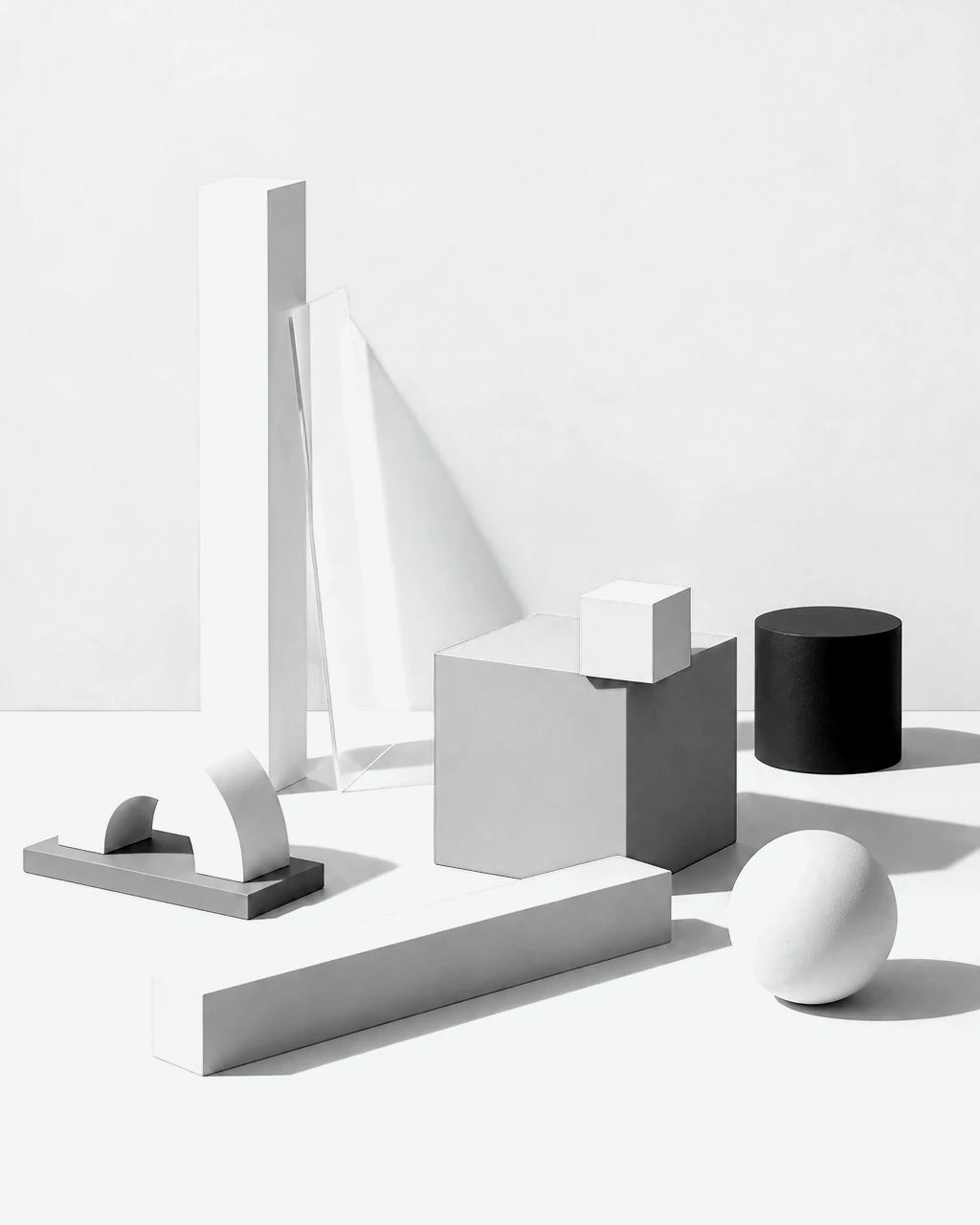
Each plate is one pass through the machine. Where a plate is dense, the drum lays down more ink; where it is empty, the paper stays bare. The print above is nothing more than these four plates stacked on the same sheet.
The Color separation panel.
- Open your artwork in the Editor and click Split in the left toolbar. The Color separation panel opens.
- This lesson uses the Risograph print process. The split modes then work with your Risograph inks.
- The modes are listed as cards, in two groups. Channel Process holds Smart CMYK, Classic CMYK and Soft CMYK. Color Map holds Monotone, Duotone, Tritone, Polychrome and Compass.
- Each Color Map card has variants, shown as a row of pills at the top of its settings: Tonal or Blend for Duotone, for example.
- The first time you open a mode in a version, the Editor adjusts it to your image. Every print in this lesson is that first result, with nothing changed by hand.
Choose a split mode walks through the panel step by step.
The number under every print.
Below the settings of a mode, the panel lists each ink with its coverage, and the total at the bottom. The coverage of an ink says how much of it its plate lays on the artwork: 0% is bare paper, 100% is a full solid from edge to edge. The total adds the plates up, so it can go past 100% when inks overprint.
Coverage matters on a Risograph. Too little ink may look faded, while too much can cause bleeding, slow drying and paper issues. A warning icon appears next to the total when it gets heavy, and Ink coverage guide, in the same row, explains the ranges.
Every caption below gives the coverage the Editor measured for that print. Keep an eye on it: on this one image, the eight cards range from 33.5% to 101%.
Same artwork, eight separations.
Here is each card as it opens on this artwork, with a palette that suits it: process-like inks for the three CMYK cards, one ink for Monotone, two for Duotone, three for Tritone, five for Polychrome, and four bright inks without a black for Compass.
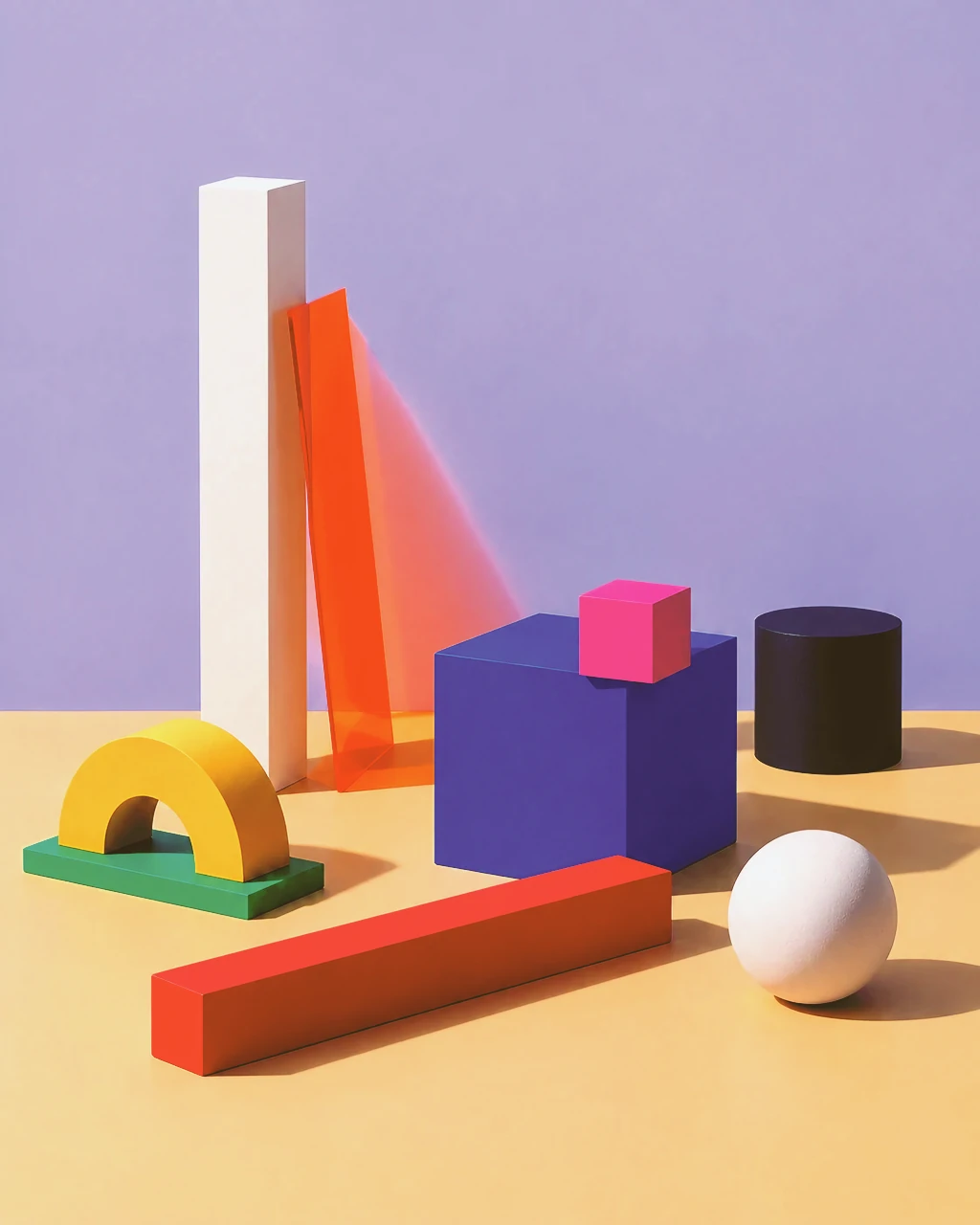
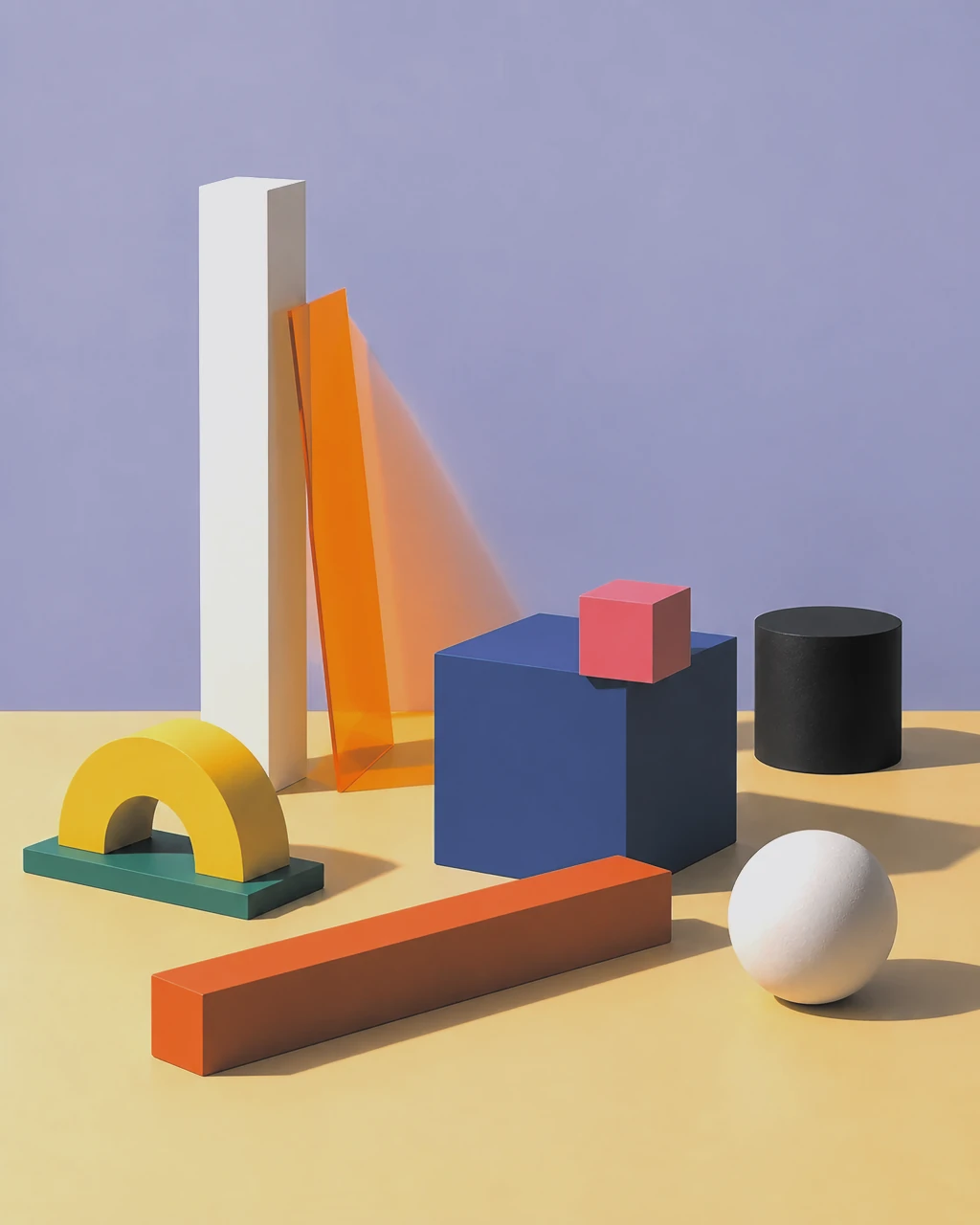
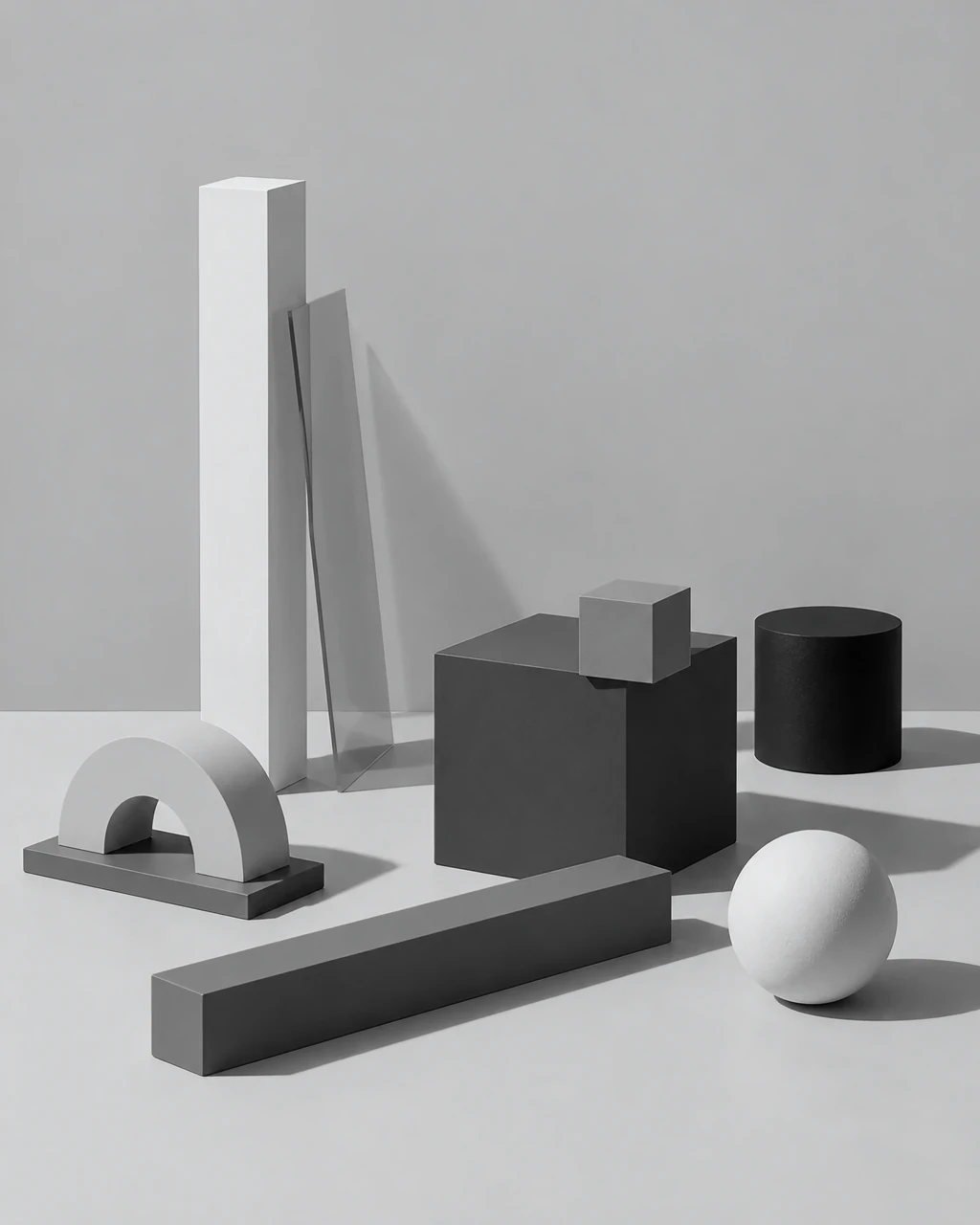
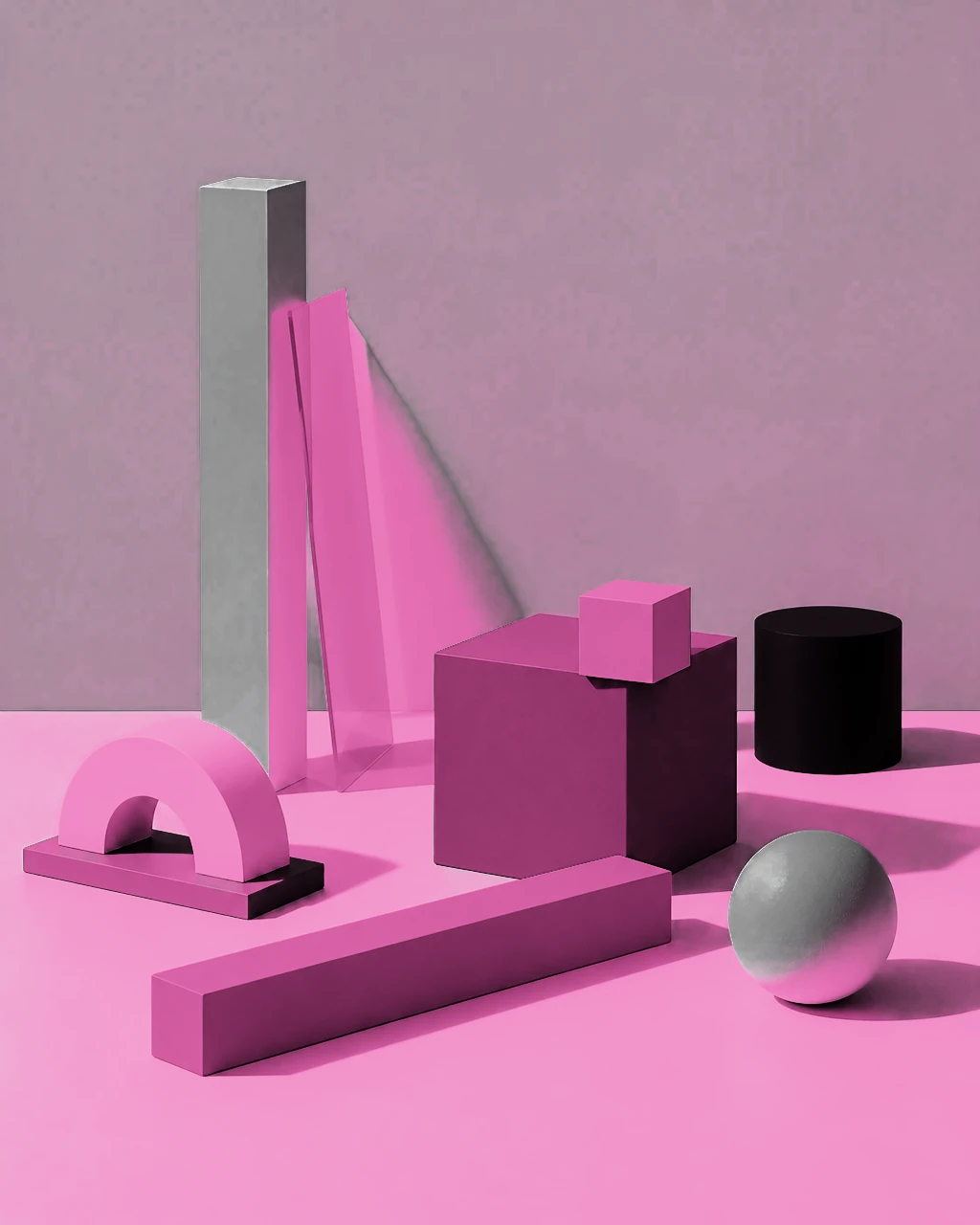
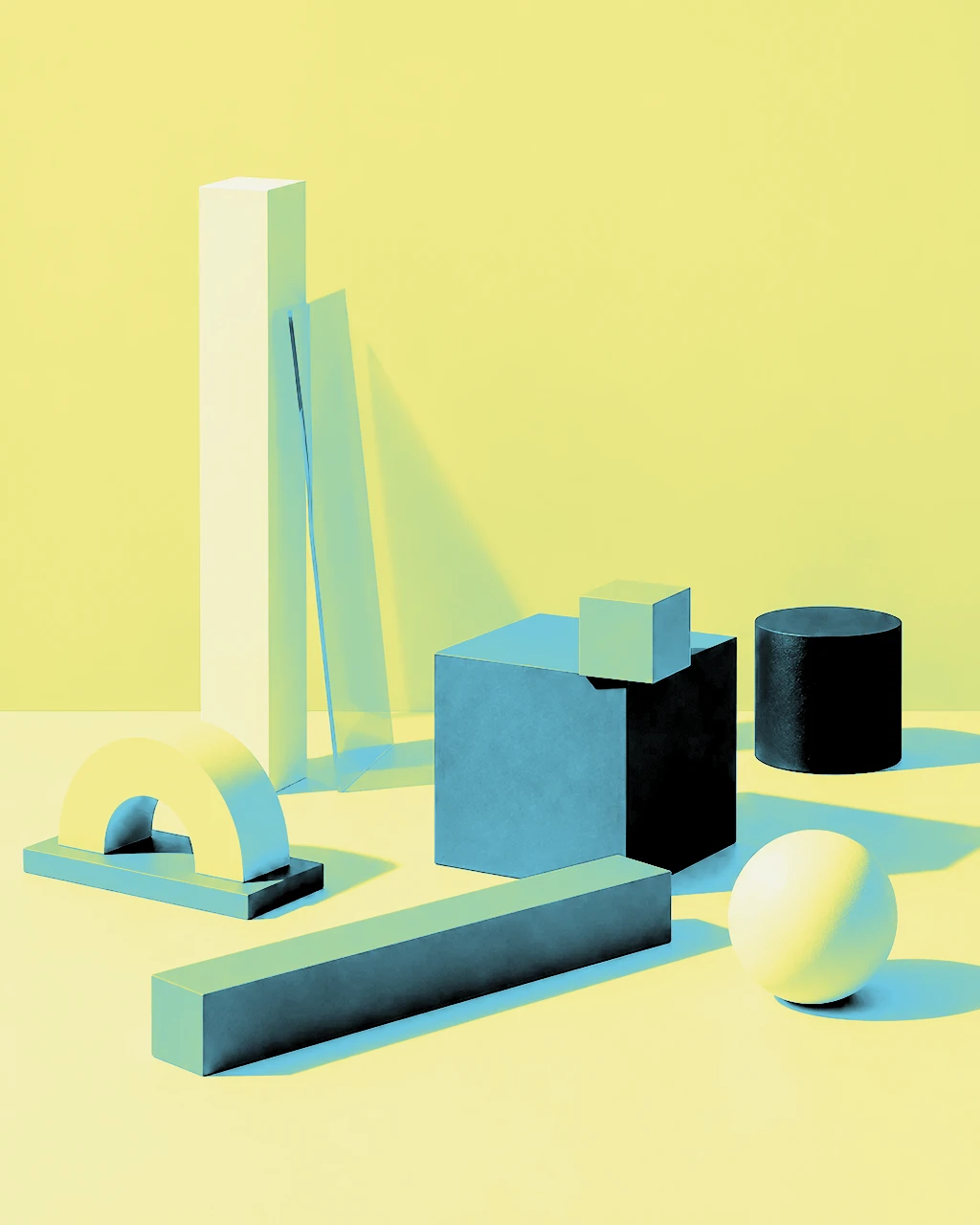
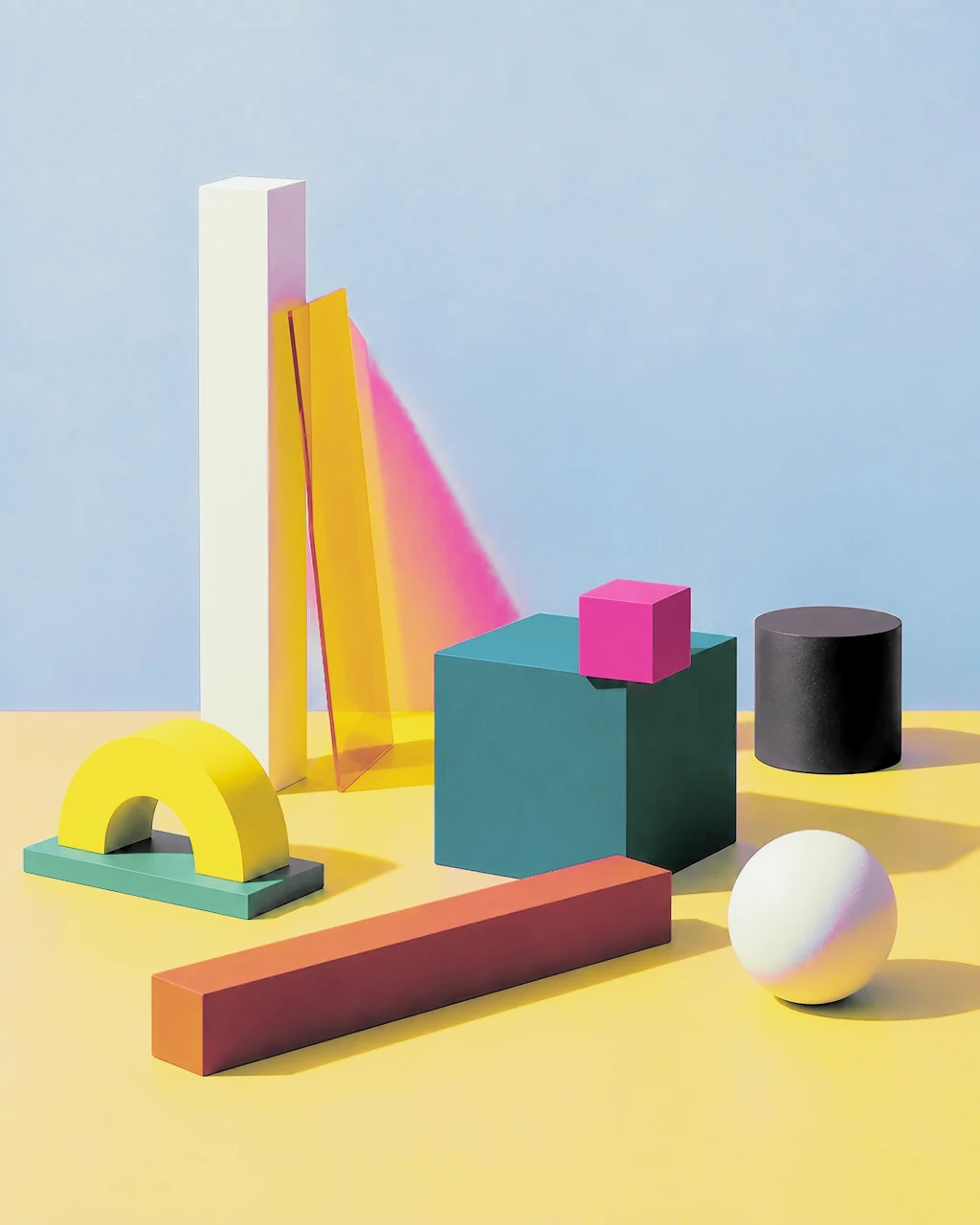
- The three Channel Process cards stay closest to the original, because their four inks can mix most colours. They are also three of the four heaviest prints here.
- Monotone, Duotone and Tritone do not try to match the original. They translate it into one, two or three inks, and the choice of inks sets the mood.
- Polychrome and Compass work with the spot colours you own. What your palette cannot reach shifts to the nearest ink: the blue cube turns teal in one print and dark in the other.
- More inks does not mean more ink. Tritone, with three inks, totals 57.6%: less than Duotone with two (70.4%).
Start from the inks you can load.
- One ink: Monotone.
- Two inks: Duotone. Try the four pills, they rarely agree.
- Three inks: Tritone, with the darkest ink as the key.
- Inks close to cyan, magenta, yellow and black, and an image whose colours should stay natural: a Channel Process card. Start with Classic CMYK, move to Smart CMYK for more colour or to Soft CMYK for less ink.
- A set of spot colours: Polychrome. Use Keybase when one dark ink can hold the drawing, Spot when it cannot.
- Bright inks and no black: Compass.
Your palette stays when you switch, and each mode keeps its own settings. Come back to a mode you already used in this version and it opens as you left it.