Planche and Flat
Planche repeats one artwork over the sheet, Flat takes slots of any size. See how the grid counts copies, what prints around them, and what the export writes.
Not every job is a booklet. A stack of postcards, a run of stickers, a sheet of small prints to trim: here the sheet has no pages and no fold, only artworks laid side by side. The Layout has two families for that. Planche repeats one artwork over the whole sheet. Flat lets you place each slot by hand, at the size you want.
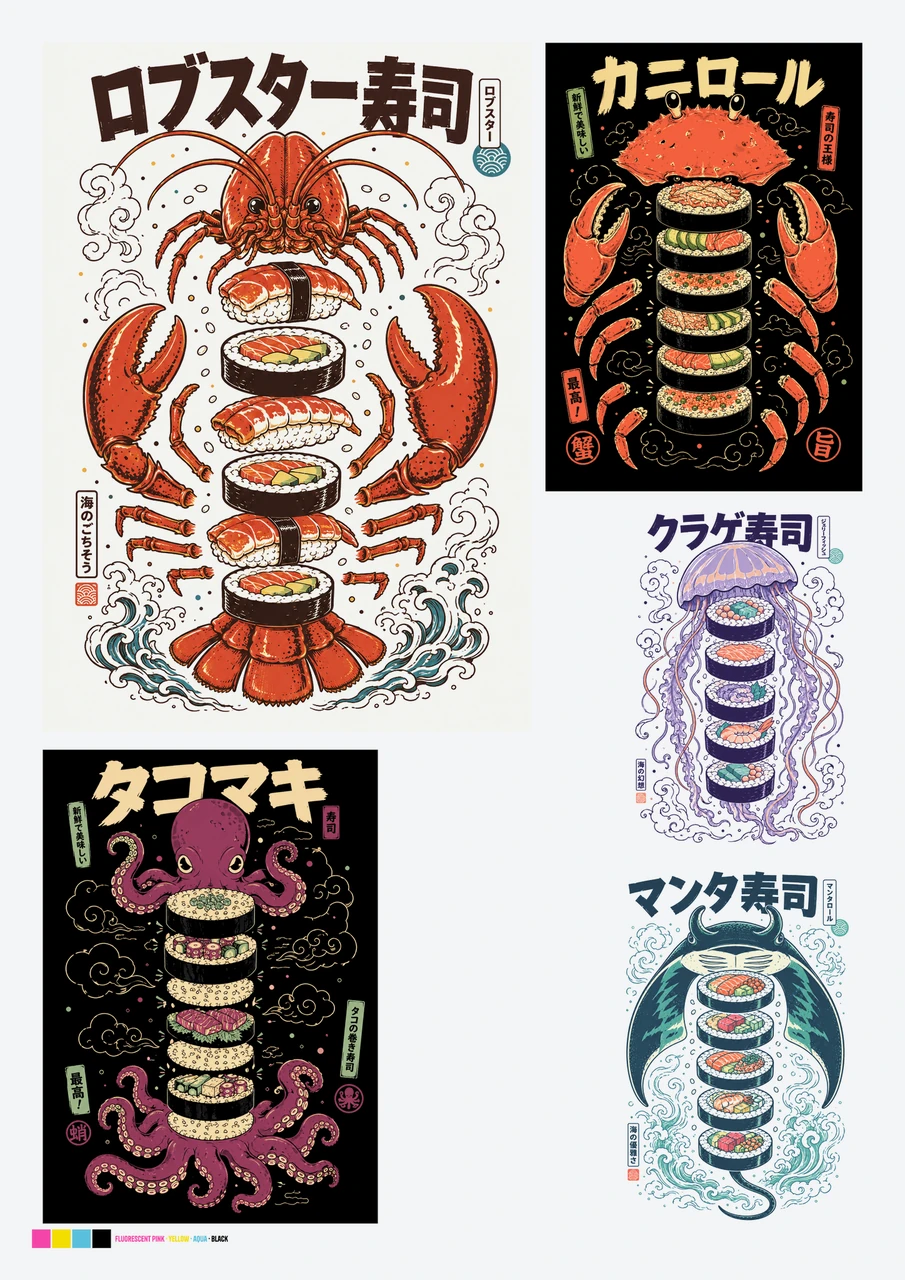
Five sushi posters separated in Smart CMYK (Aqua, Fluorescent Pink, Yellow, Black), print process Risograph, then placed in layouts created from the New layout window. Every image is the Layout's own render: the sheet as the canvas draws it, or the proof and the plates of its export. Coverage is measured on the exported plates, as a share of the whole sheet.
A sheet with no pages.
- The New layout window starts with the family. Planche reads Artwork repeated in dynamic grid, Flat reads Drop artworks to place slots manually.
- Both then offer the same sixteen sheets, from A6 to A2, with the SRA, B and US sizes: Planche A4, Flat A3…
- Either way you get a single sheet: no page count, no Folio panel, no Add sheet.
One artwork, repeated.
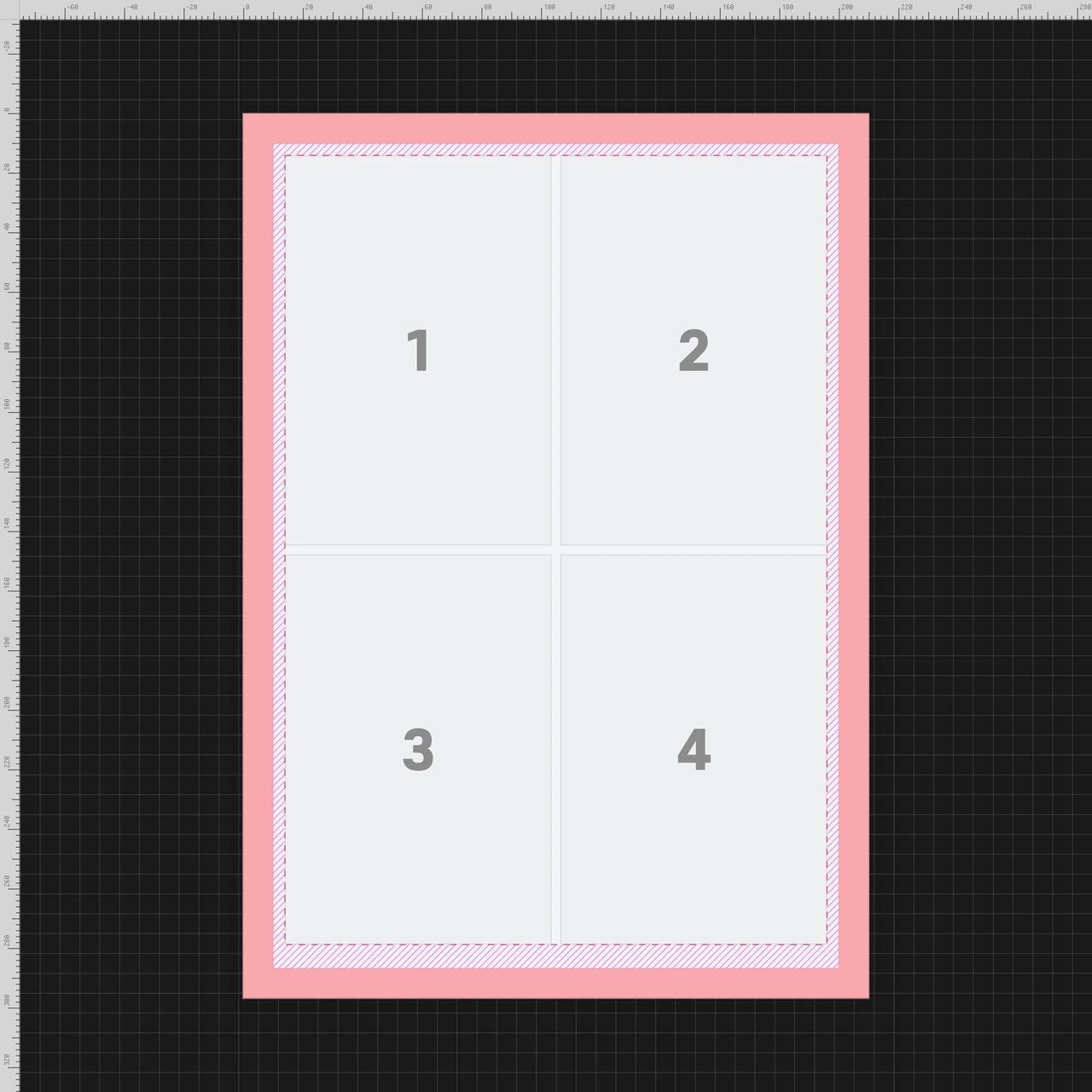
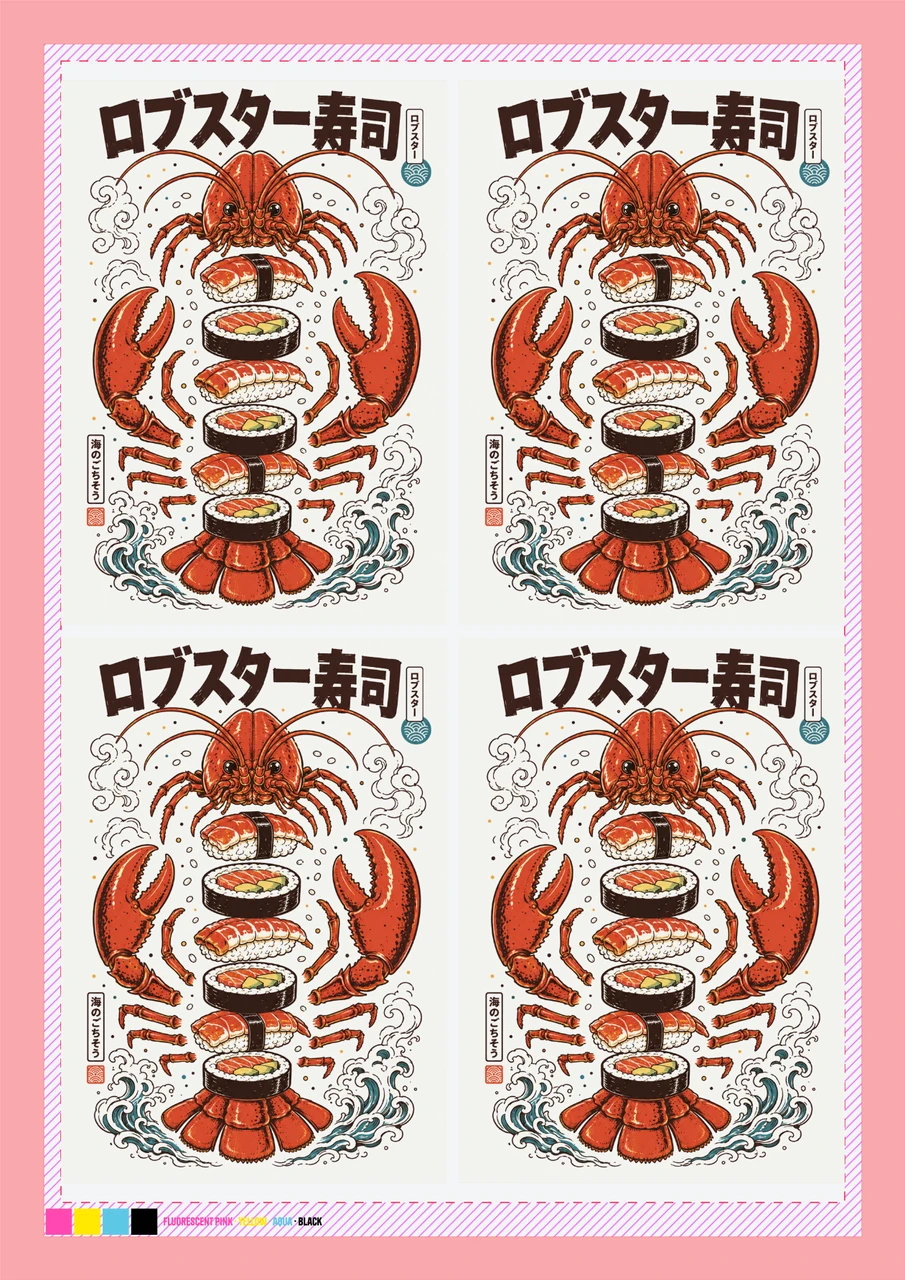
- A new Planche shows its slots, numbered: four on an A4, nine on an A3.
- Drag an artwork from the Library panel onto a slot or onto the sheet: it lands in every slot. Drop another one and it replaces the first, everywhere.
- The copies take the size of the slots, not the size of the artwork. This lobster was exported 10.5 cm wide; here it prints at 9 × 12.6 cm, the size at which four fit the sheet.
- Four A6 prints do not fit an A4: the pink band is the No-Print Area, the edge the machine leaves unprinted (10 mm here), and the hatched band inside it is the Page Bleed. Both are set in the Bleed panel.
- Click a copy to open its slot: Real size, Fit Mode (Contain or Cover), Rotation and Flip. What you set on one copy is applied to all of them.
How many copies, and where.
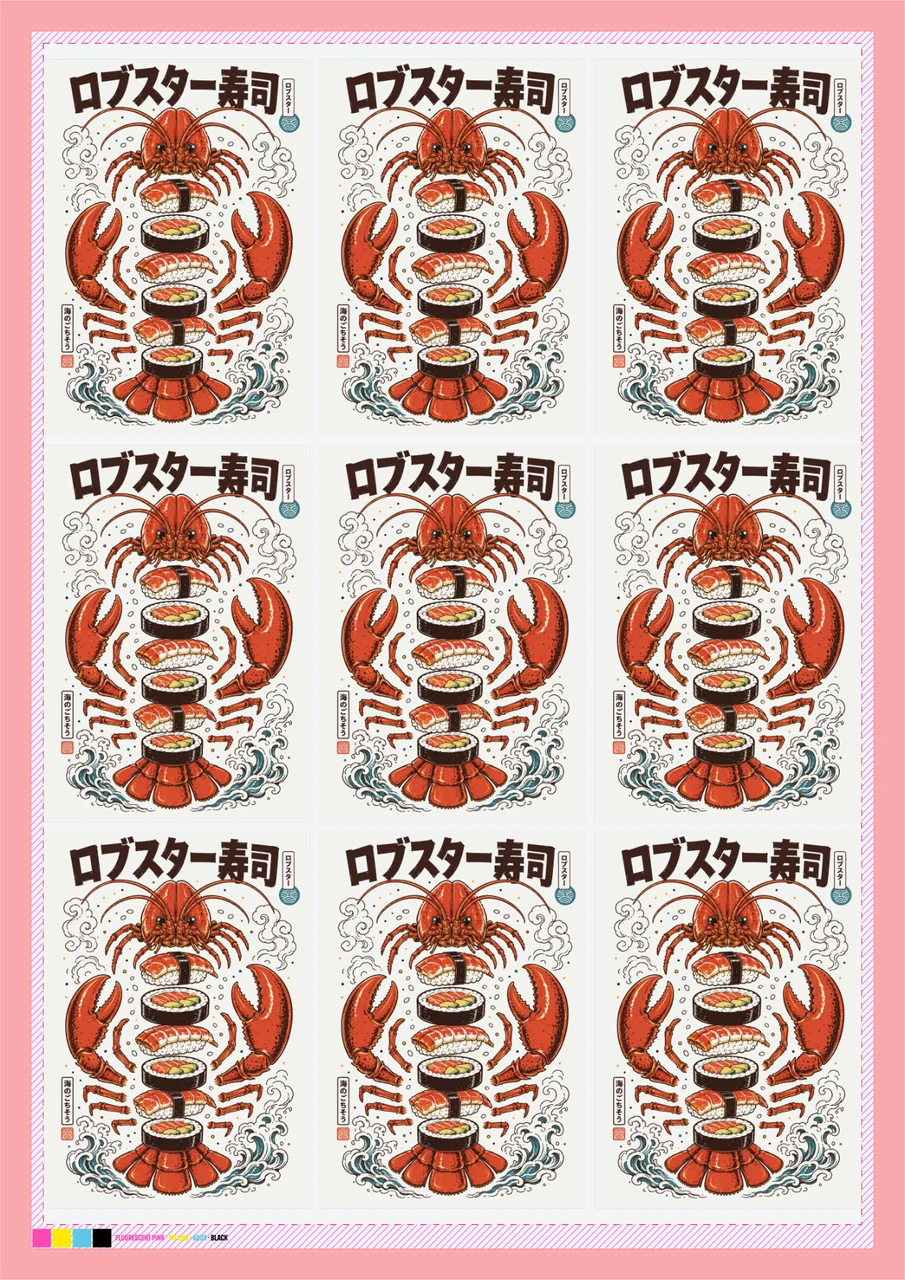
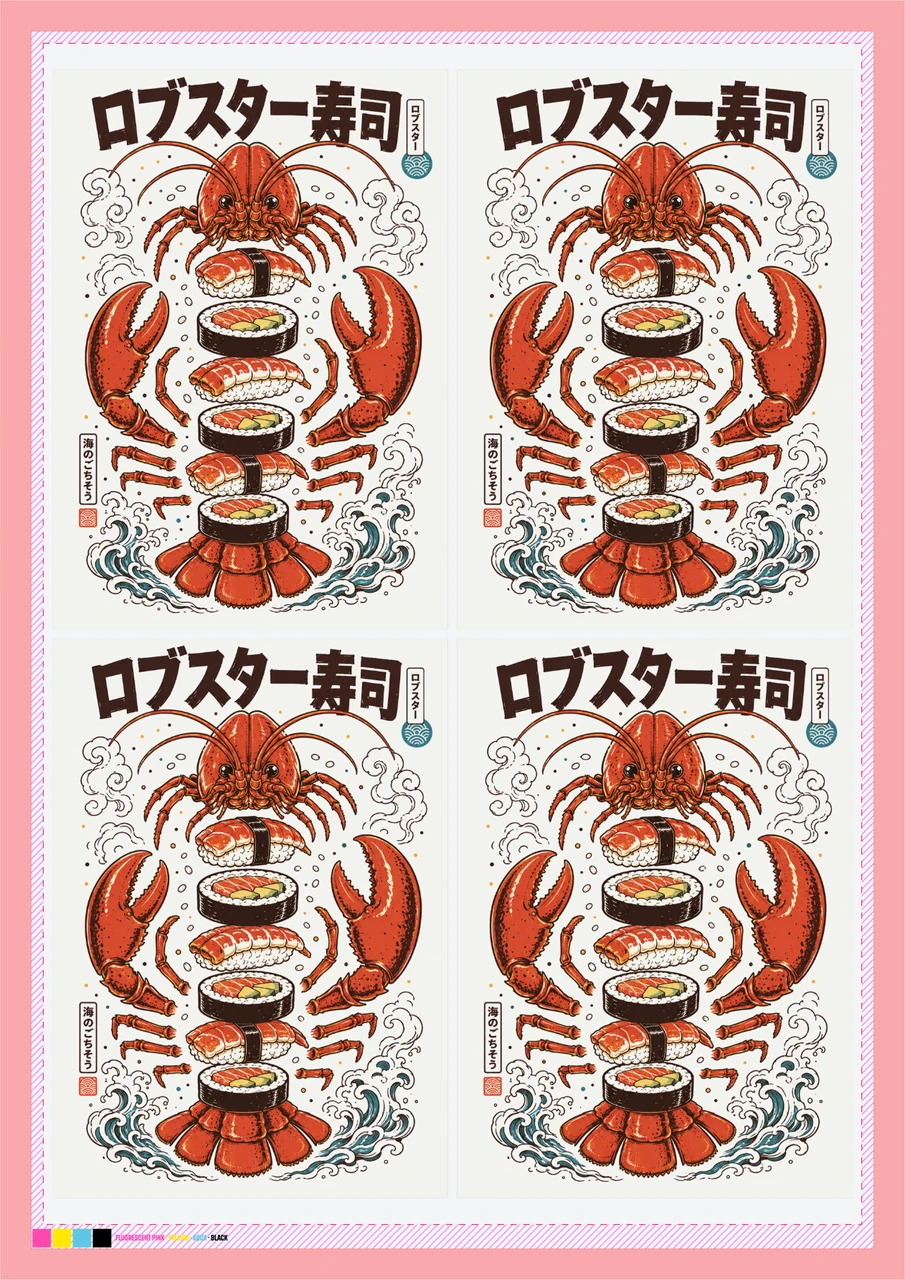
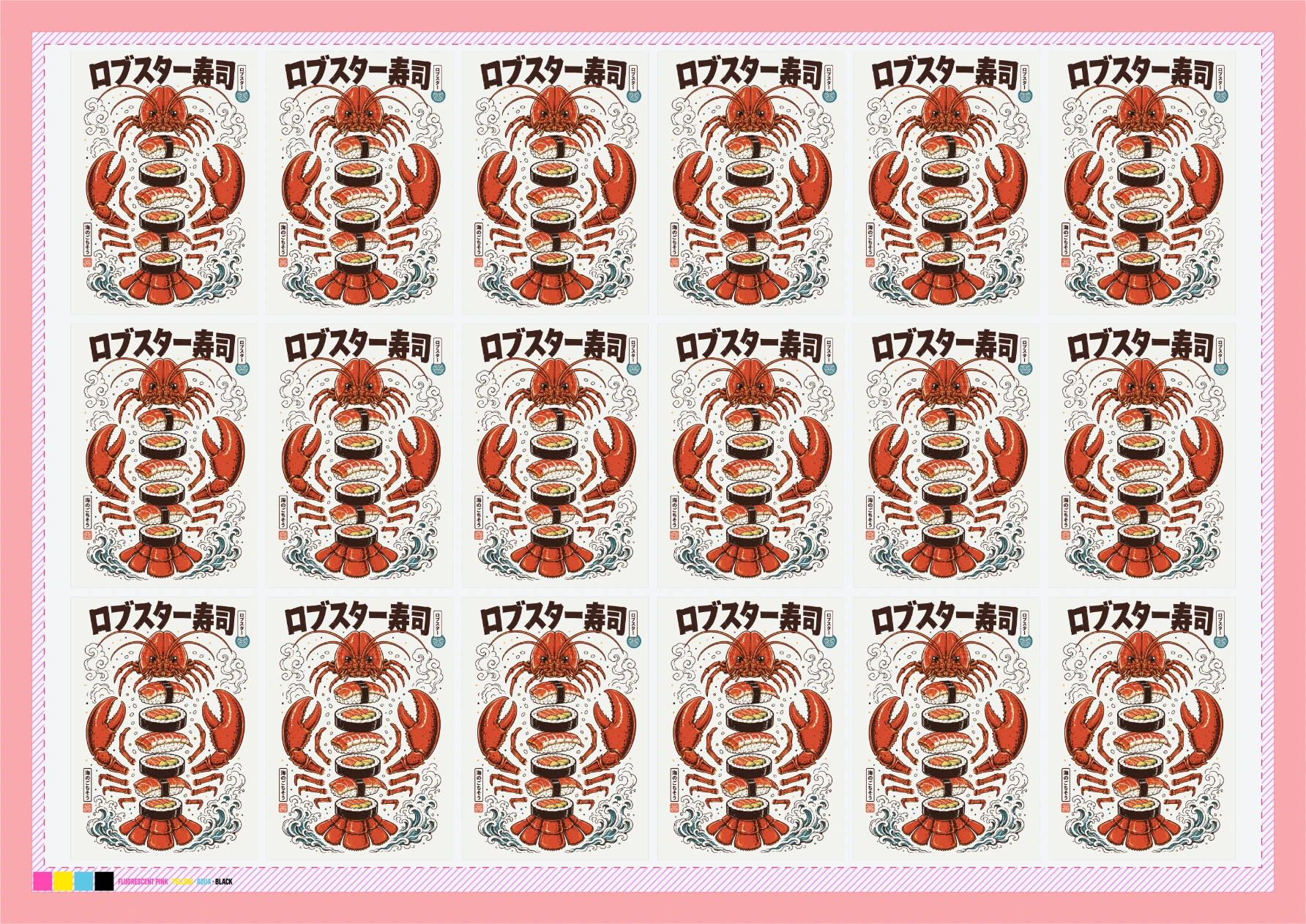
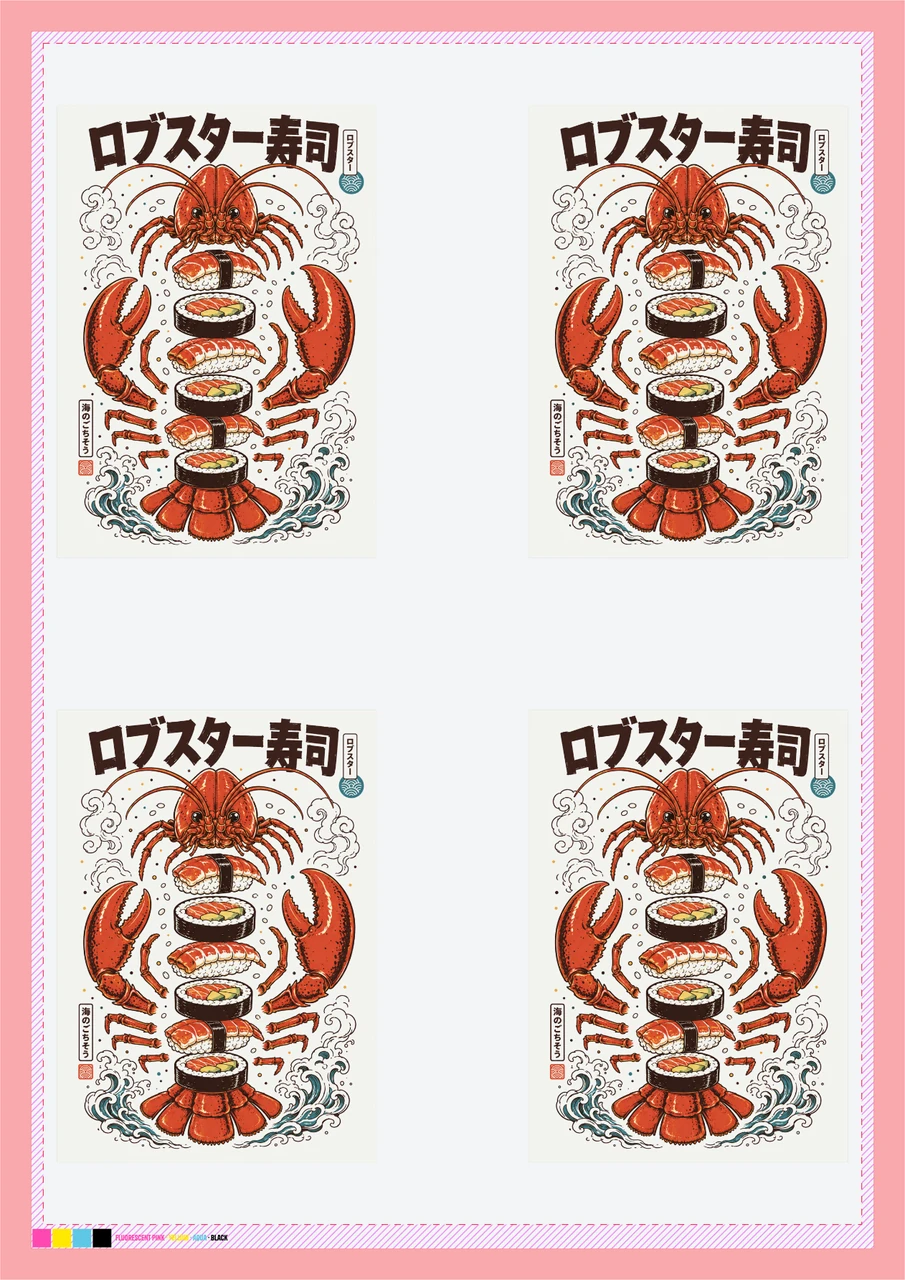
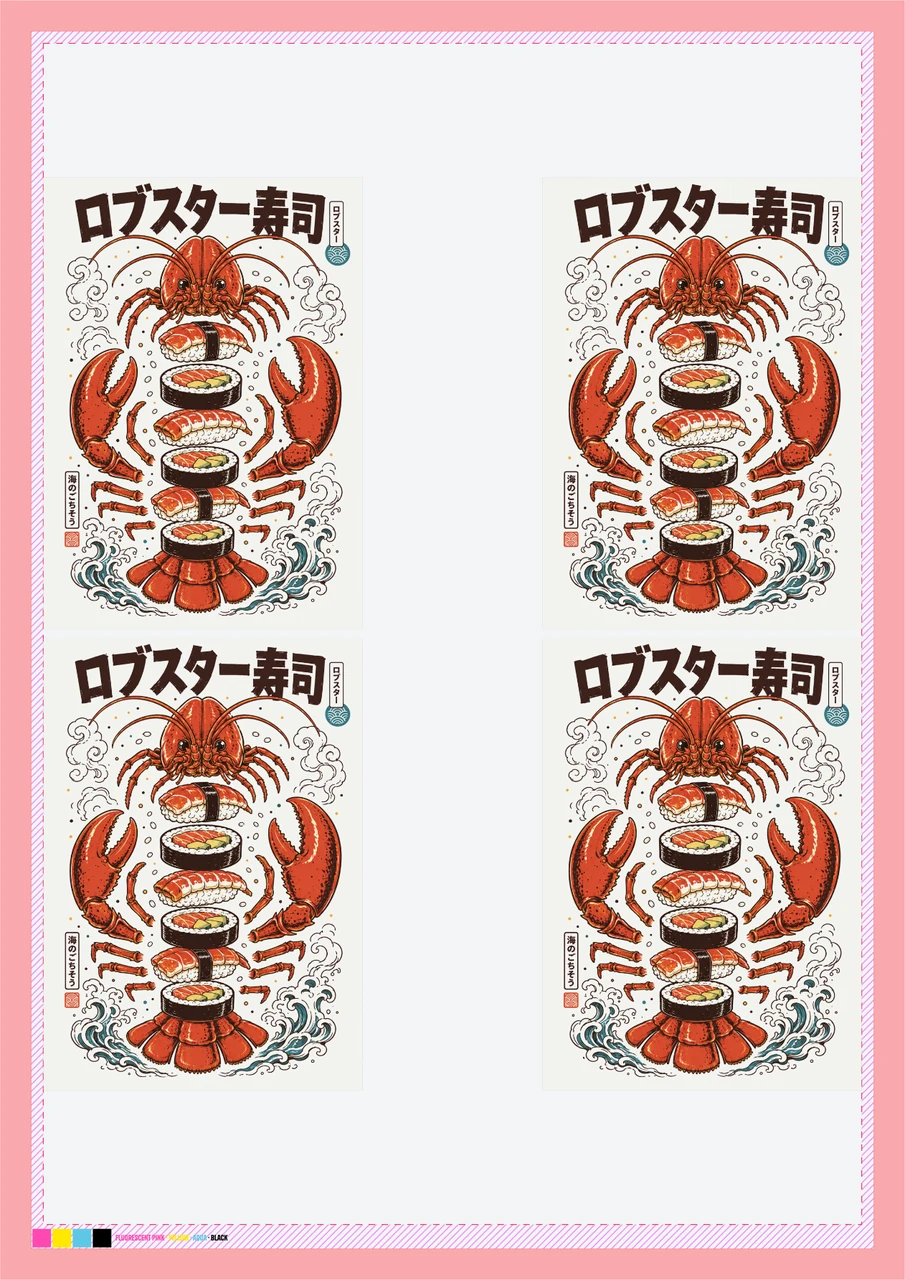
- The Grid panel has no slot counter: the number of copies follows from their size and from the gutter.
- Copy size sets W and H, locked to the proportions of the artwork. Larger copies, fewer of them: nine, four or eighteen on this A3.
- Gutter between slots is the gap between copies, 3 mm on a new Planche. Max widens it as far as it goes without losing a copy.
- Avoid sheet center keeps the middle of the sheet free, for a sheet that is folded in half. Grid position pushes the block of copies to an edge or a corner; it starts centered.
- In the Layout panel, Sheet & Orientation offers Auto, Portrait and Landscape. A new Planche is on Auto: the sheet turns by itself to the orientation that holds the most copies, as it did at 6 cm.
Slots placed by hand.
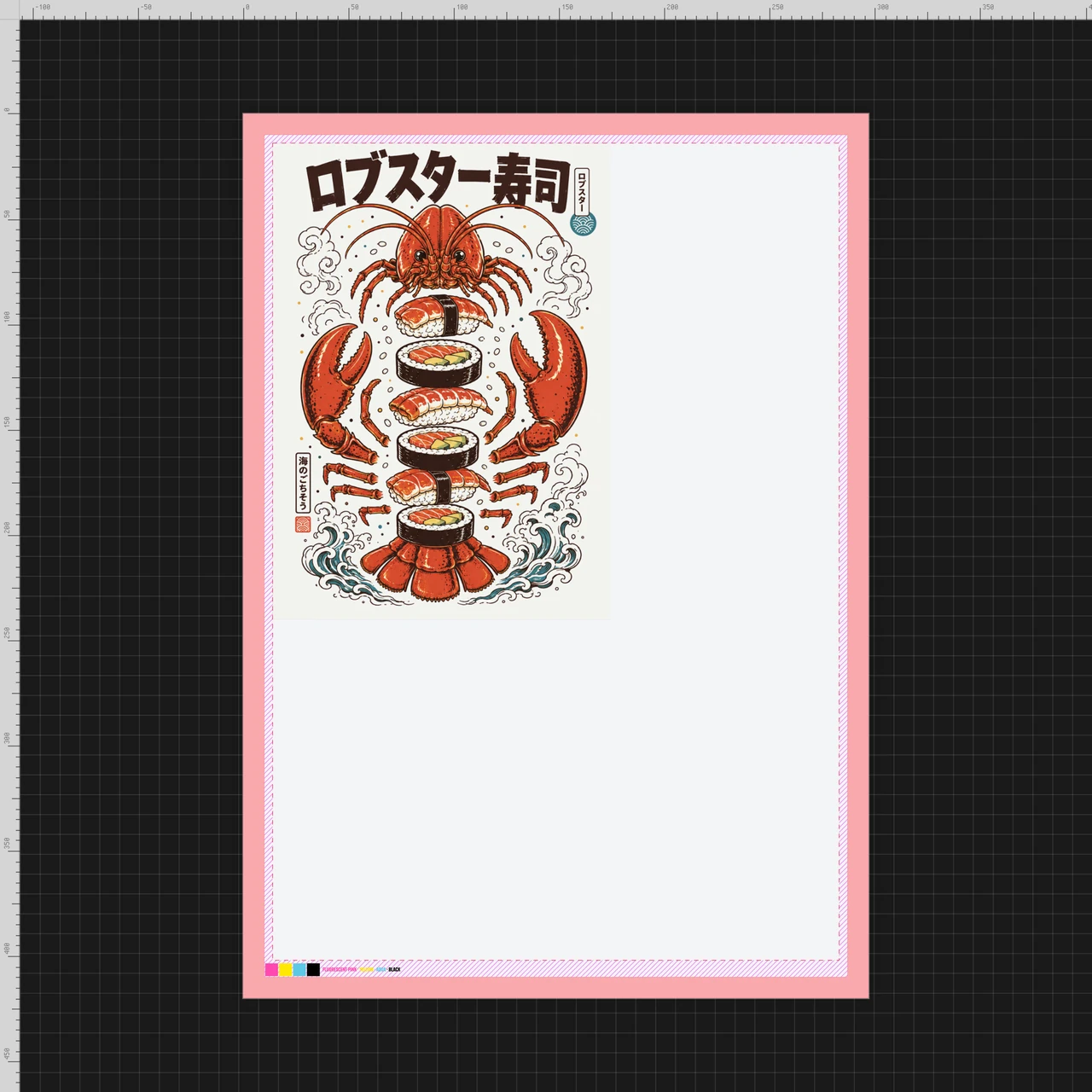
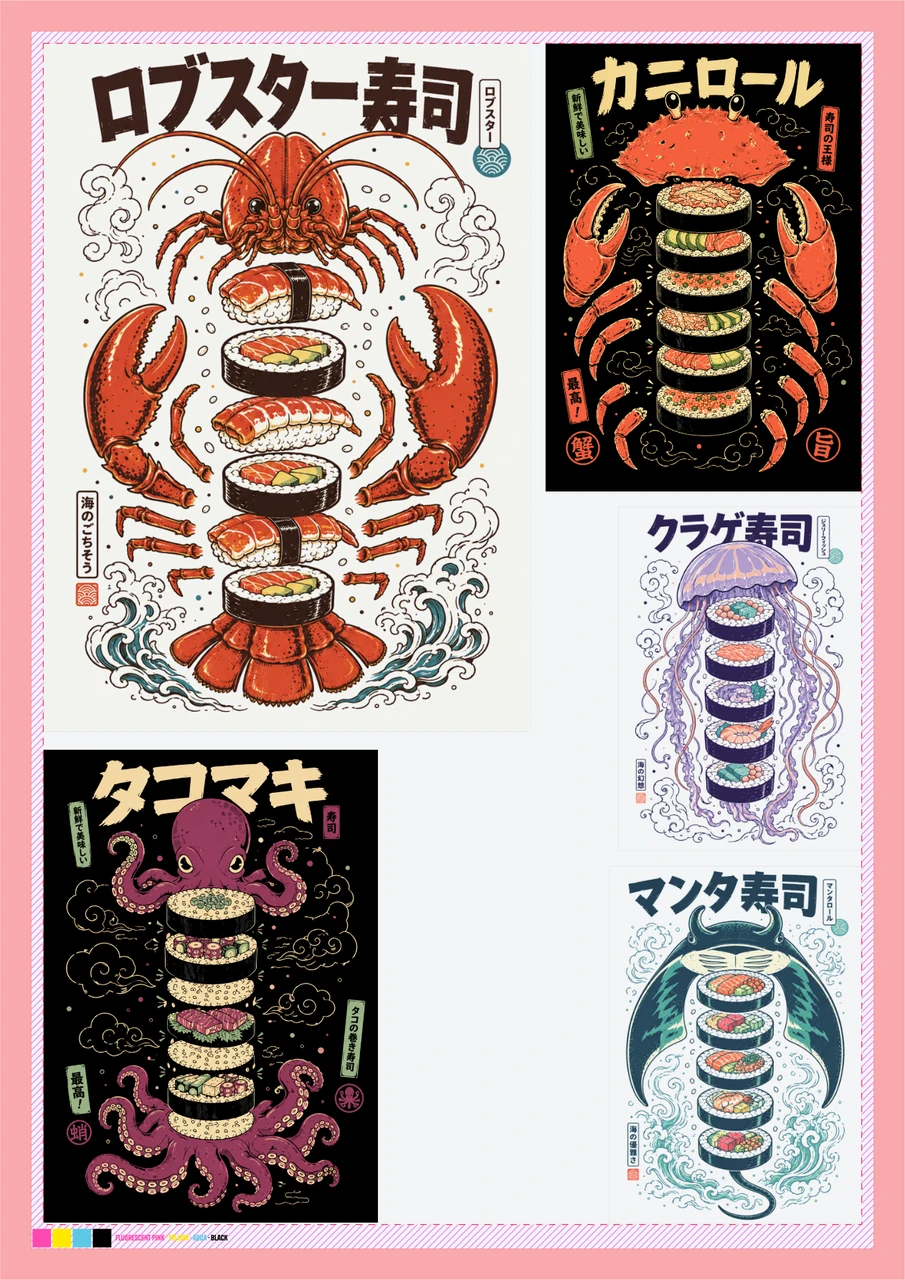
- A Flat has no grid. Drop an artwork on the sheet and the New slot window asks for its Width and Height, locked to the proportions of the artwork. Create puts the slot where you released the artwork, with the artwork fitted inside.
- The first slot is offered at the size of the artwork, the next ones at the last size you created.
- To change a size: hover the slot and click SET SIZE, or double-click it. The Slot size window also sets a Margin for the slot.
- On the canvas, click an artwork to get its handles: scale the slot and its artwork together, or rotate it in steps of 15°. Turn on Slot select, at the bottom right of the canvas, to drag slots around. Two slots never overlap.
- The Flat panel takes the place of Grid: it lists every slot of the side with its size. Delete removes the selected slot.
Room to cut.
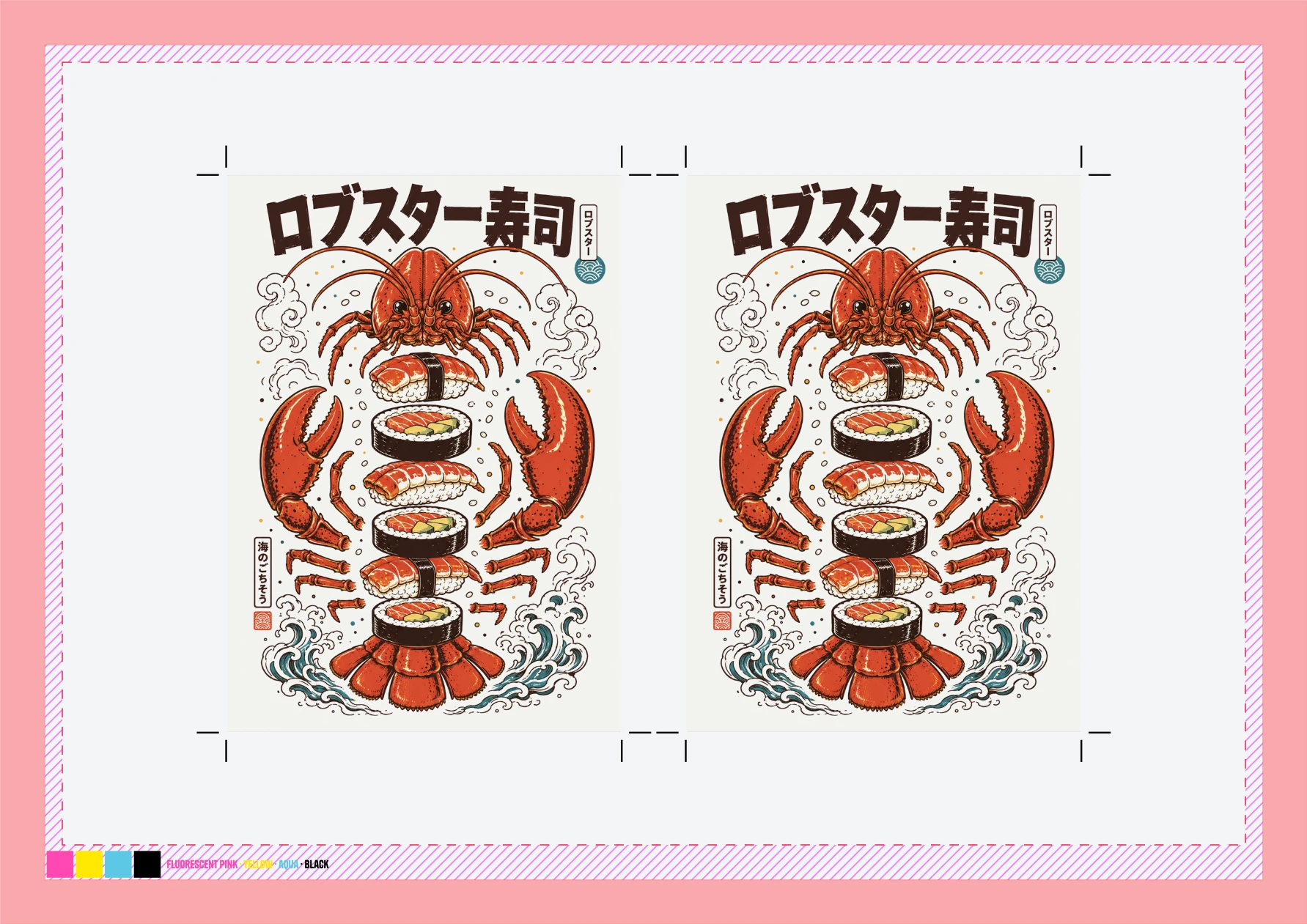
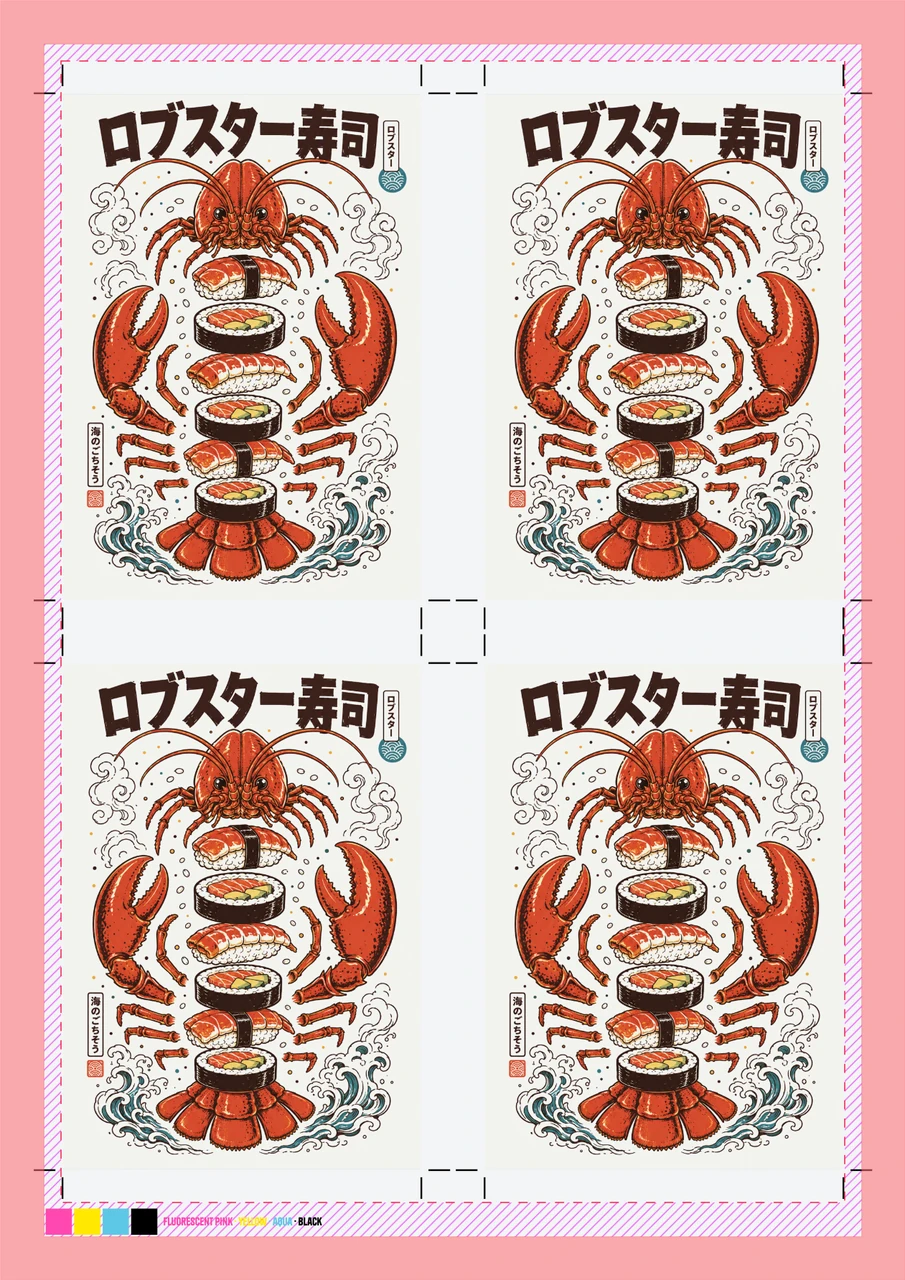
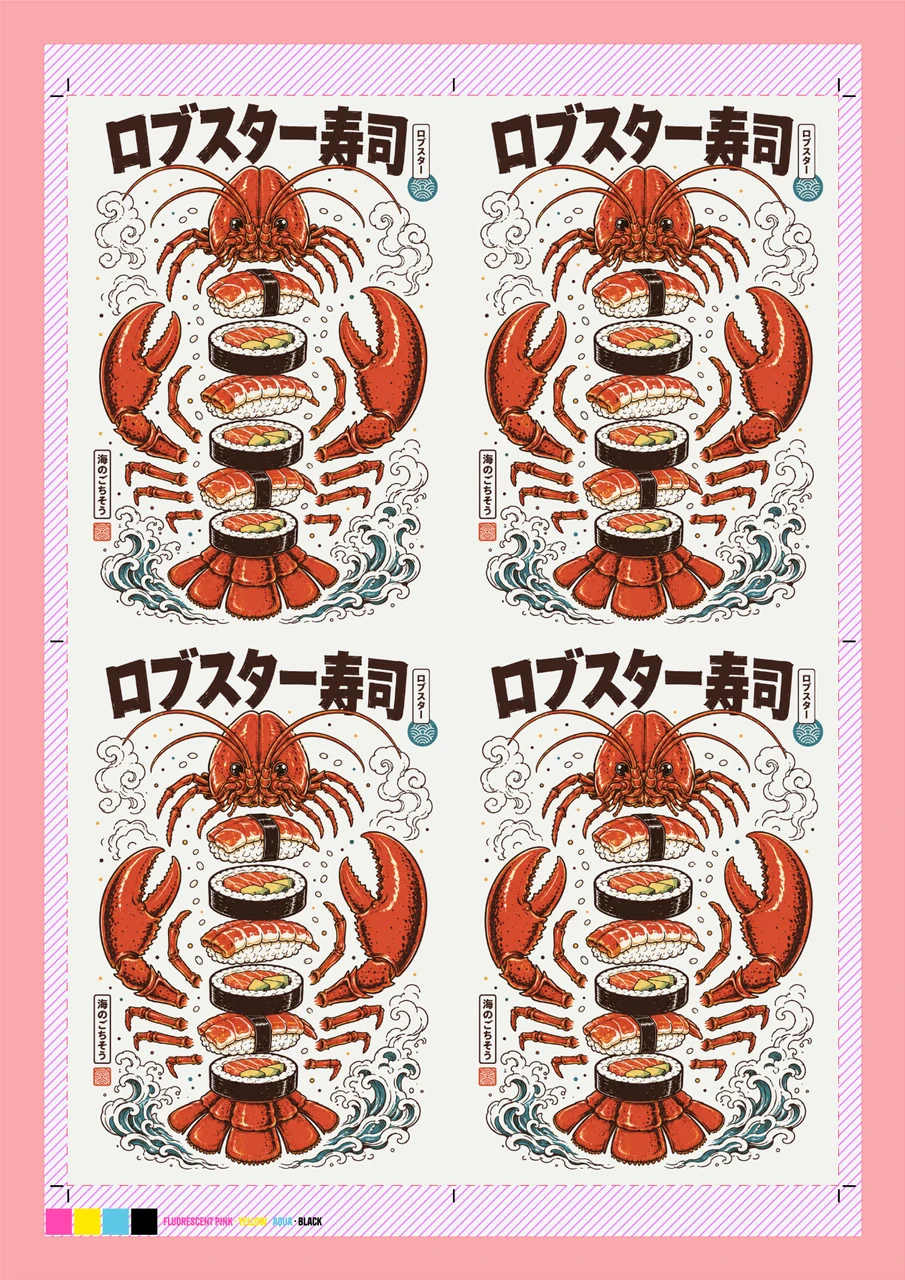
- Show crop marks draws L-shaped ticks at the corners of every slot. They need room between the copies: on this A4 the gutter goes from 3 to 15 mm and two of the four copies no longer fit. A smaller Copy size brings them back.
- Cut ticks (guillotine), on a Planche only, is the opposite choice: copies edge to edge, no gutter, and a short tick at every row and column boundary. You slice along the ticks.
- With marks on, Print on chooses the plates that carry them: All plates, or One plate, by default the darkest ink of the side.
One square per pass.


- Look at the bottom left of every sheet above: a row of four squares and a line of ink names. That is the Label. On a Planche or a Flat it is on from the start.
- It holds one square per ink, in press order, then the ink names. Each plate prints only its own square and its own name, at its place in the line. Stacked, the four passes complete the row: you see at a glance that every pass is there, and in register.
- The Label panel moves it (Edge, Align, From the edge), sizes it (Square size, Text size), adds a Pass number after each name or keeps Squares only. Display info bar turns it off.
One plate per ink, for the whole sheet.
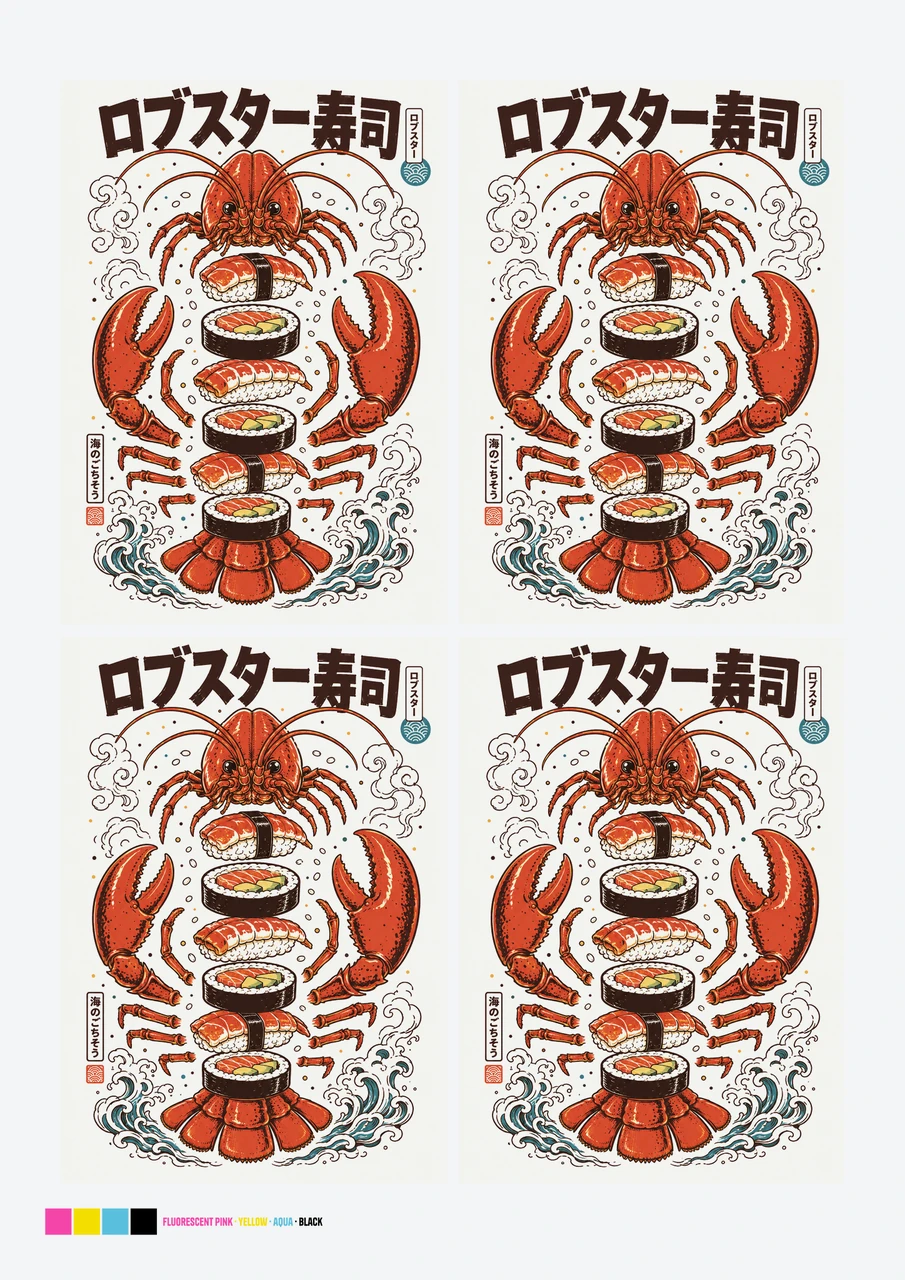
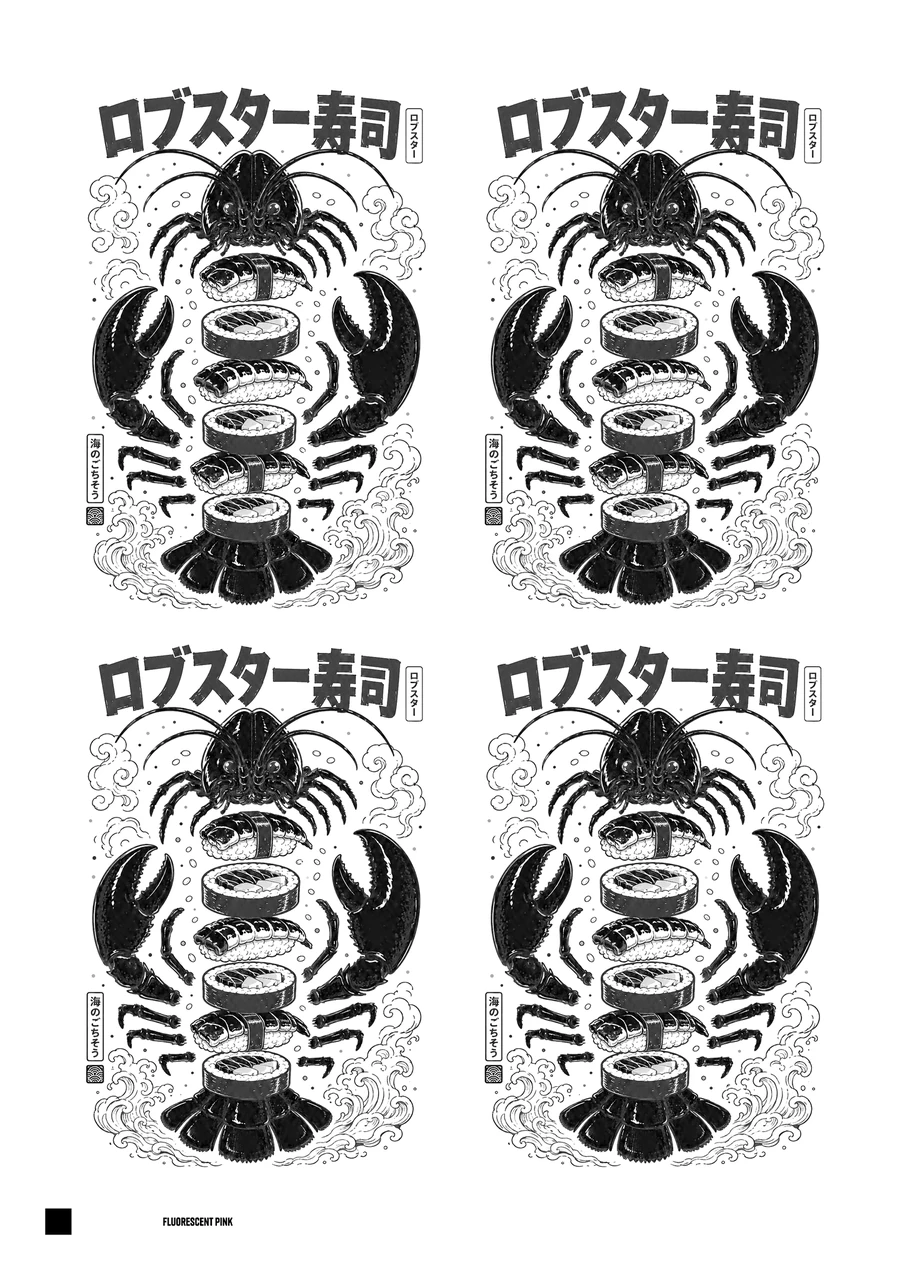
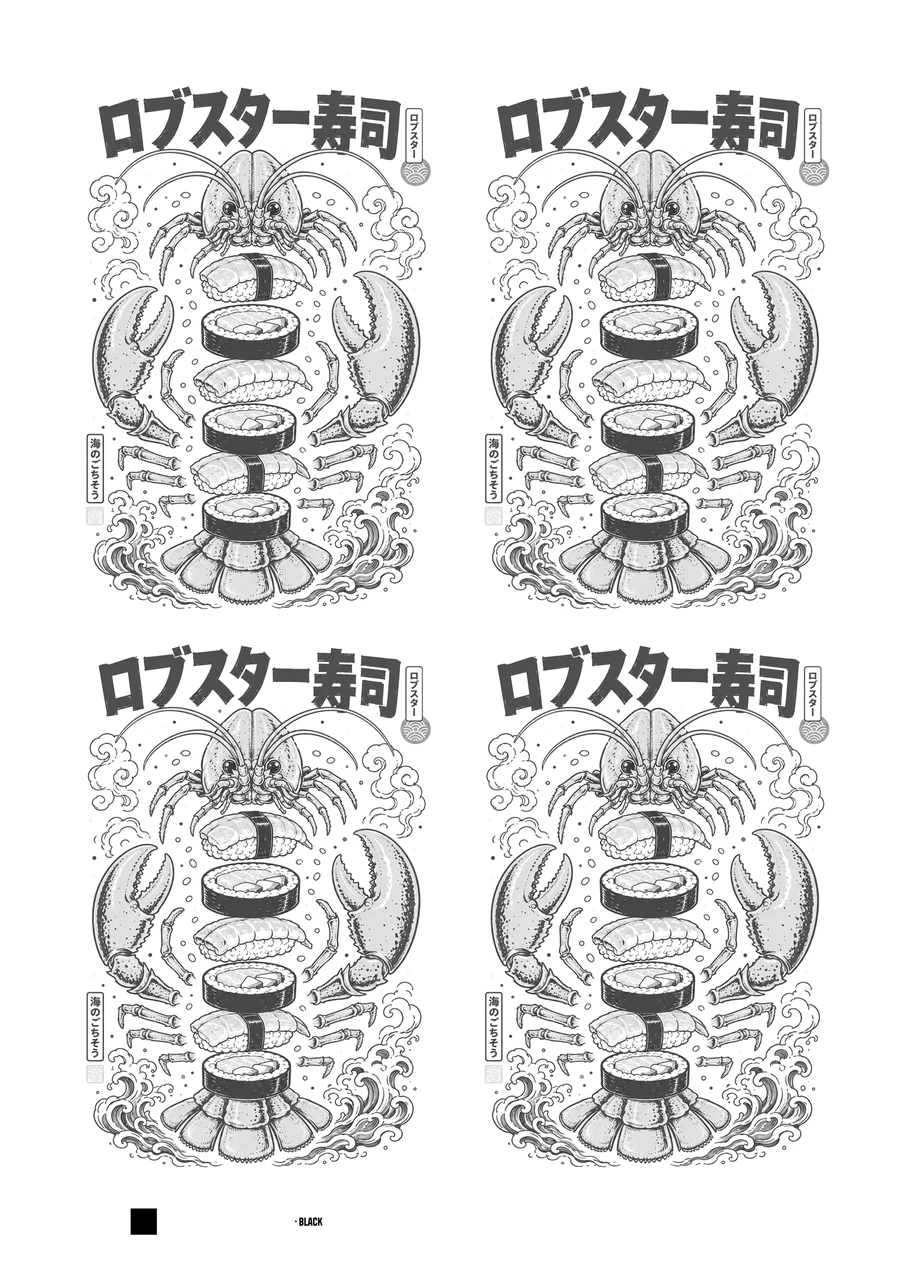
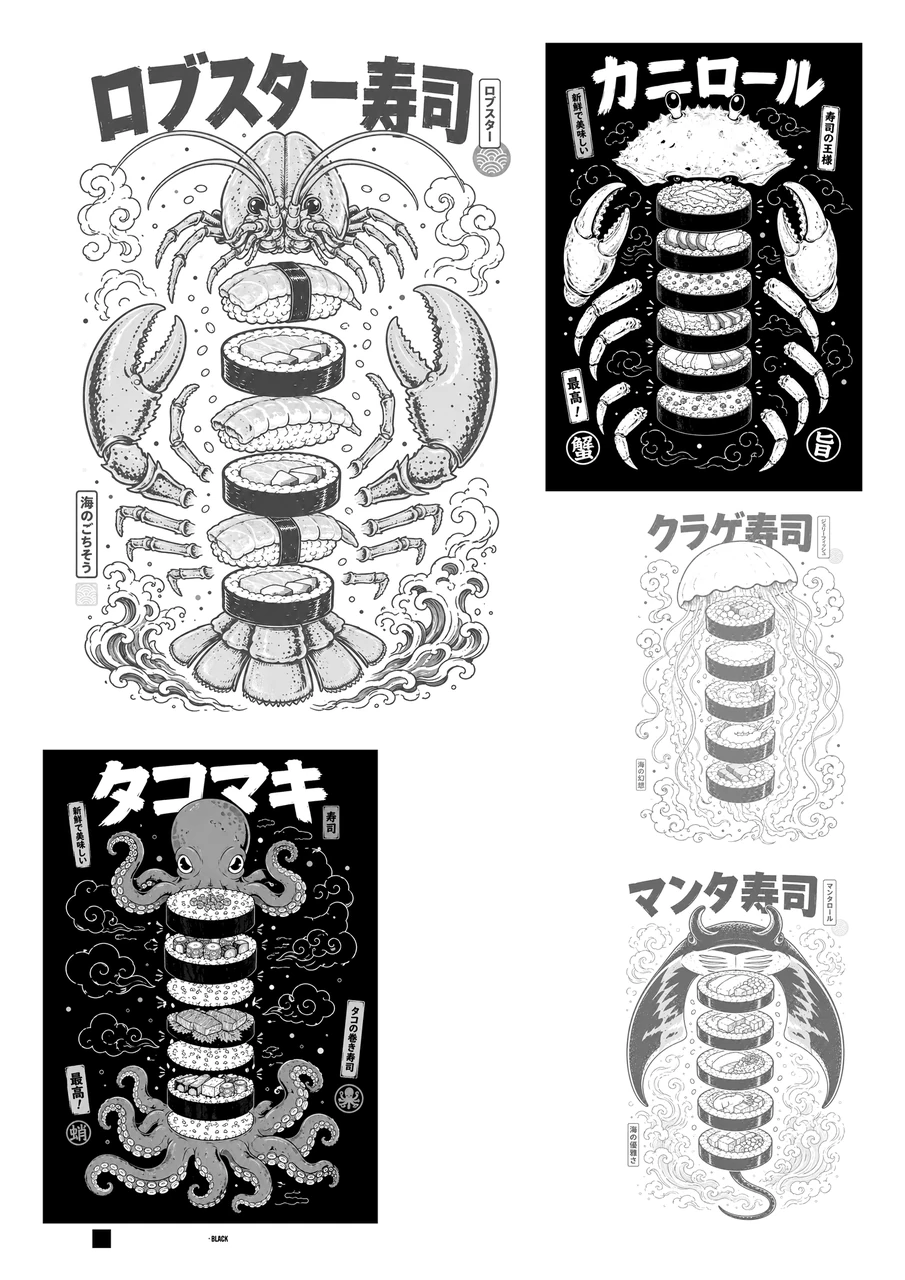
At the Print step, the export writes one plate per ink for the whole sheet, numbered in pass order (1_fluorescent-pink to 4_black here), and a color proof, layout_preview.pdf. Four copies or one, the count is the same: four inks, four passes. Total print passes, in the Resume panel, says so before you export.
| Sheet | Fluorescent Pink | Yellow | Aqua | Black | Total |
|---|---|---|---|---|---|
| Lobster alone, in the Editor | 27.5% | 23.7% | 7.3% | 16.3% | 74.7% |
| Planche A4, four copies | 20.8% | 17.9% | 6% | 12.1% | 56.7% |
| Flat A3, five artworks | 15.1% | 11.3% | 6.8% | 25.3% | 58.4% |
- On the Planche, each plate inks less of the sheet than of the artwork: 12.1% of Black against 16.3% in the Editor. The edges and the gutters stay bare.
- The Flat is hardly heavier in total, 58.4% against 56.7%, but its Black plate inks 25.3% of the sheet, twice the Planche: two of its posters sit on a black ground.
- These figures are measured on the exported plates. Sheet coverage, in the Resume panel, is an average of the inked slots: the two do not read the same.
Planche or Flat.
- One artwork, many copies (postcards, stickers, flyers): Planche. Set the Copy size you need and let the grid count.
- Copies trimmed one by one, with paper around each: Show crop marks. Copies cut in straight runs on a guillotine: Cut ticks.
- Several artworks on one sheet, or one artwork at several sizes: Flat. A Planche does not mix artworks.
- Artworks that share a sheet share its passes: every extra ink is one more pass for the whole sheet.
- Business cards repeat the same way, with a card size fixed by the preset. See Business cards.
After the first drop on a Planche, open Grid and read Copy size: the copies may be smaller than the artwork you exported.